
⇄
01 / Sale posters
New price. Ready to share.
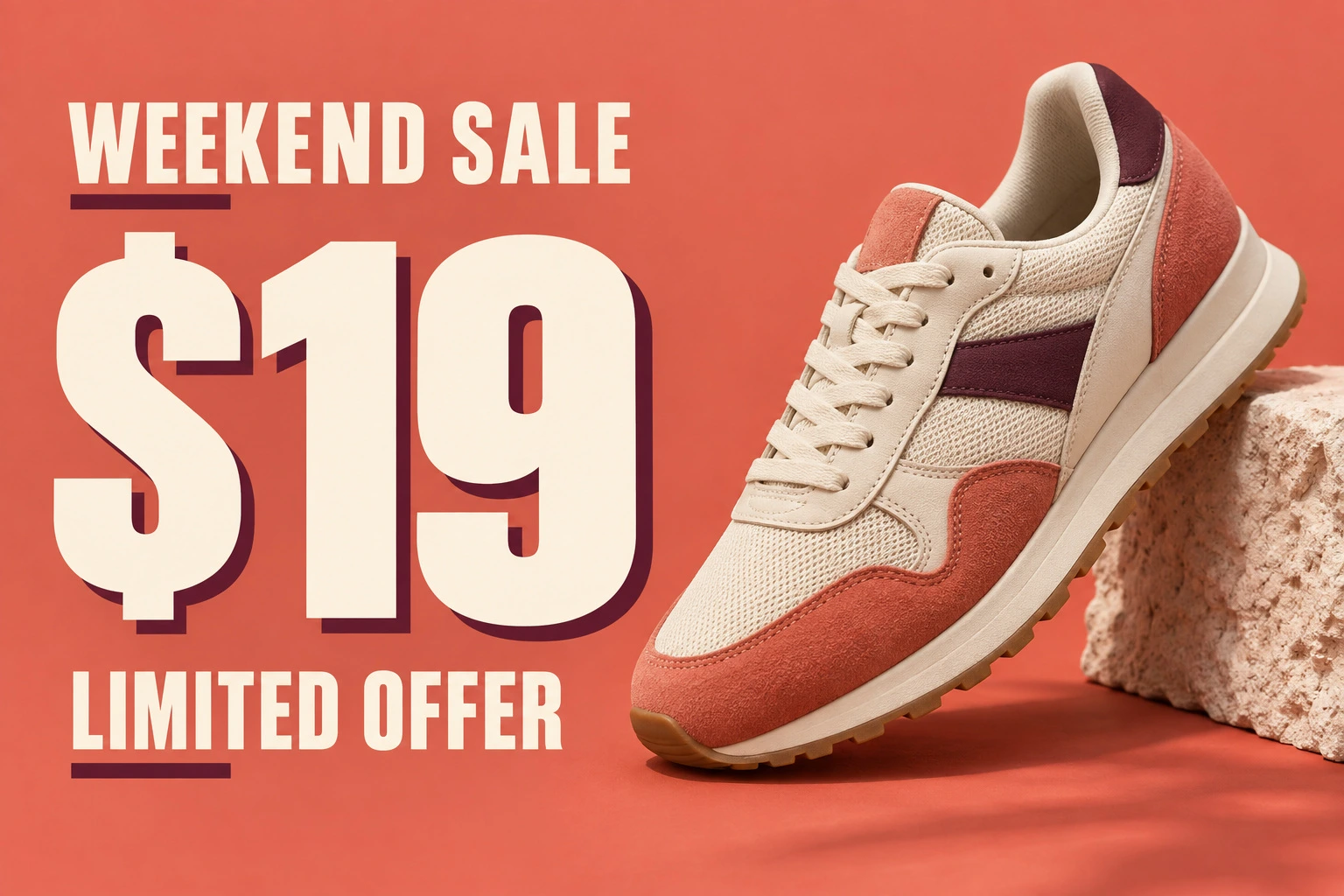
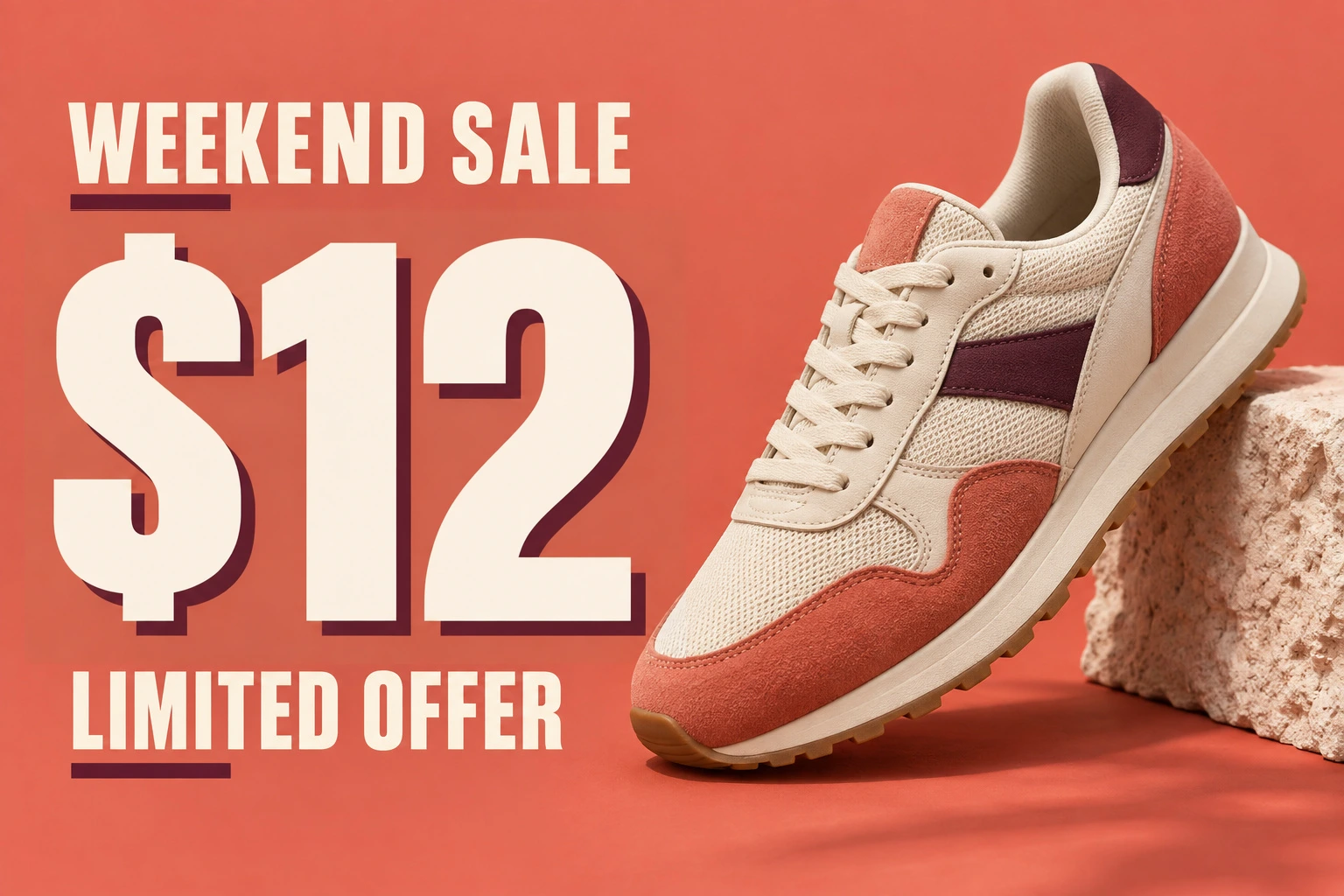
Update a sale price in a JPEG poster. Compare the new numbers and the surrounding design.
JPG and JPEG
Upload your JPG, select the words, and type their replacement. Review the result and download a PNG.
Free to try · No account to start
Sign up to download. Free exports include a mark.
Upload the JPG. A scan reads the words already baked into it, you click the ones you want changed and type the replacement, and the tool redraws that part of the picture with the new wording set the way the old wording was. There is no source file to find and nothing to install.
JPG and JPEG are the same format — the two spellings are a leftover from an era of three-letter file extensions. Anything on this page applies to both, and to files your camera or phone wrote as `.jpeg` as well as `.jpg`.
One thing is worth knowing before you start, because it affects the quality of what you get back: **JPEG throws away image data every time it is saved.** Edit a JPEG in most tools and you save a JPEG again, which compresses the whole picture a second time. This tool hands the result back as a lossless PNG instead, so the only part of the image that changes is the part you asked to change.
Update a sale price in a JPEG poster. Compare the new numbers and the surrounding design.
Drag to compare · Generated scenes edited with RetypeWords.
This is an archived evaluation result, not a guarantee for every image. Inspect spelling, lettering and surrounding details before confirming your own result.
Three steps, and no second round of JPEG artefacts.
Drop in the file, at any size up to 10MB. Upload the largest copy you have — a JPEG that has already been resized and re-saved several times has lost the fine detail the tool needs to reproduce the lettering.
Click a box and type the replacement. Correct anything the scan misread first — JPEG compression blurs the edges of small type, which is exactly where a scan mistakes 0 for O or 1 for l.
Each edited area is magnified next to the original. The download is a lossless PNG at the original dimensions. If you need a JPEG for a size-limited upload, convert it once at the end rather than working in JPEG throughout.
The format shapes what is possible here, so it is worth being specific rather than generic.
If the letters already look mushy when you zoom in, that damage is in the file and cannot be recovered. Start from the least-compressed copy you can find.
About editing text in JPG and JPEG files.
One edit, no account. Lossless download, no second round of compression.
Edit a JPEG