⇄
01 / Everyday packaging
A familiar item. A new word.
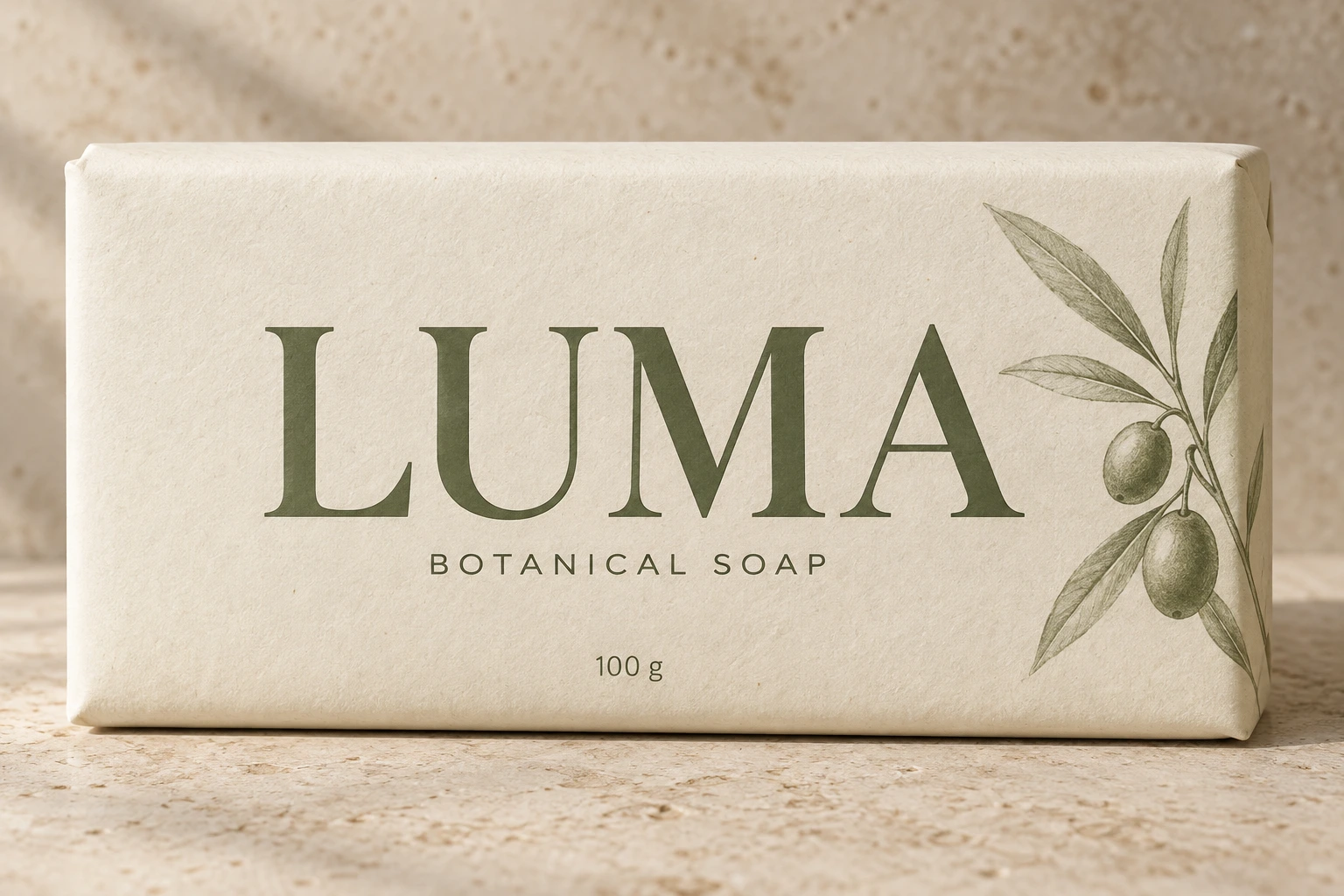
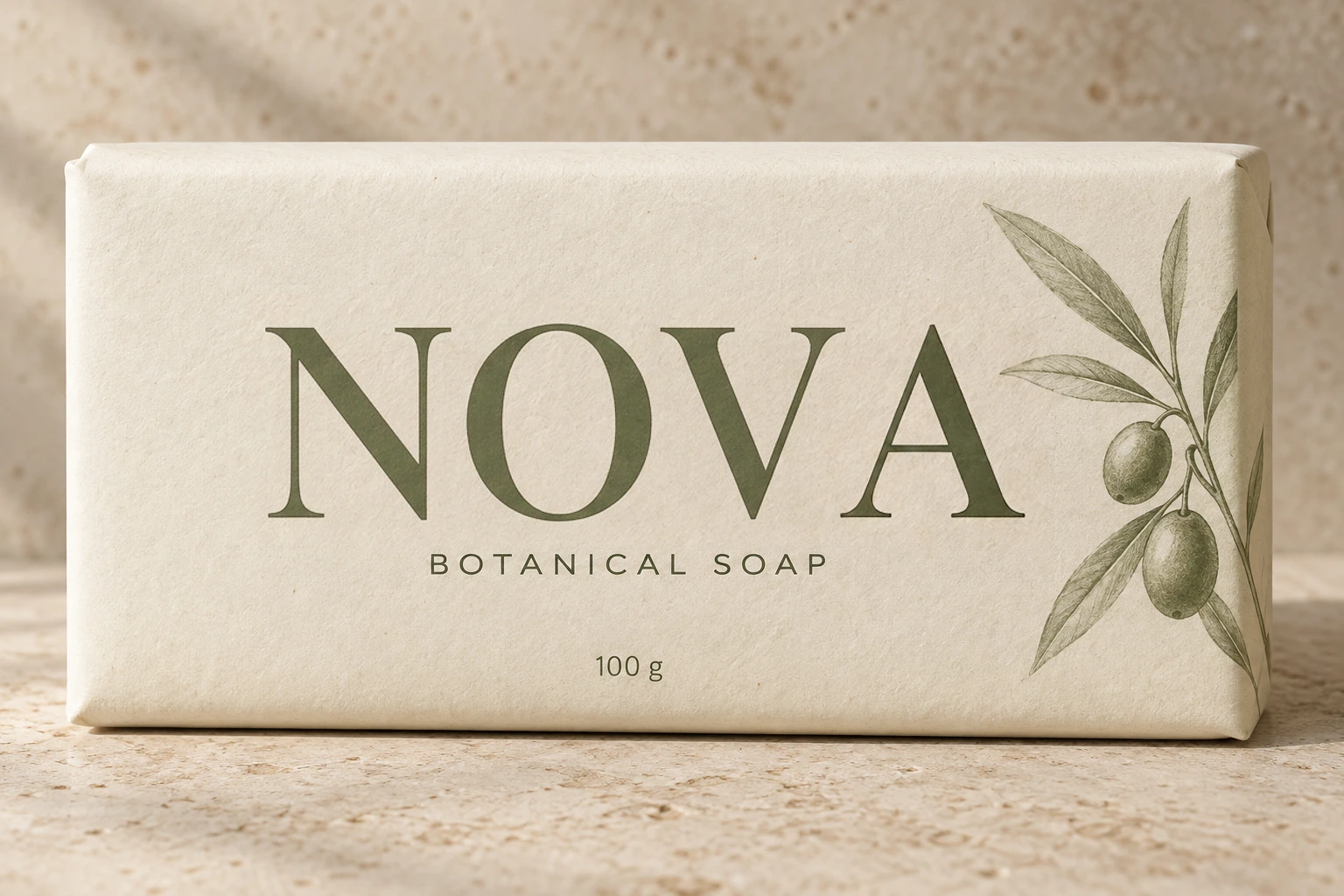
Change the brand name on a generated soap package. Compare the type style, paper texture and shadows.
Step-by-step guide
Upload your image, select the text, and enter new words. Follow the steps below to review your edit.
Free to try · No account to start
Sign up to download. Free exports include a mark.
Upload a PNG, JPG or WebP, select the text and enter a replacement. Add each change to the Pending List, then choose Generate · 1 credit. Compare the result and choose Download.
Check Original Text (Detected) against the picture before generating. If the scan reads “2026” as “2O26”, correct that field first. For a missing region, open Edit Scan Results and use Draw Missing Box.
The editor aims to match the existing lettering, but it redraws the image. Inspect spelling, spacing, logos and background details in the full image as well as the close-up. A text-match check does not guarantee that everything else stayed the same.
Change the brand name on a generated soap package. Compare the type style, paper texture and shadows.
Drag to compare · Generated scenes edited with RetypeWords.
This is an archived evaluation result, not a guarantee for every image. Inspect spelling, lettering and surrounding details before confirming your own result.
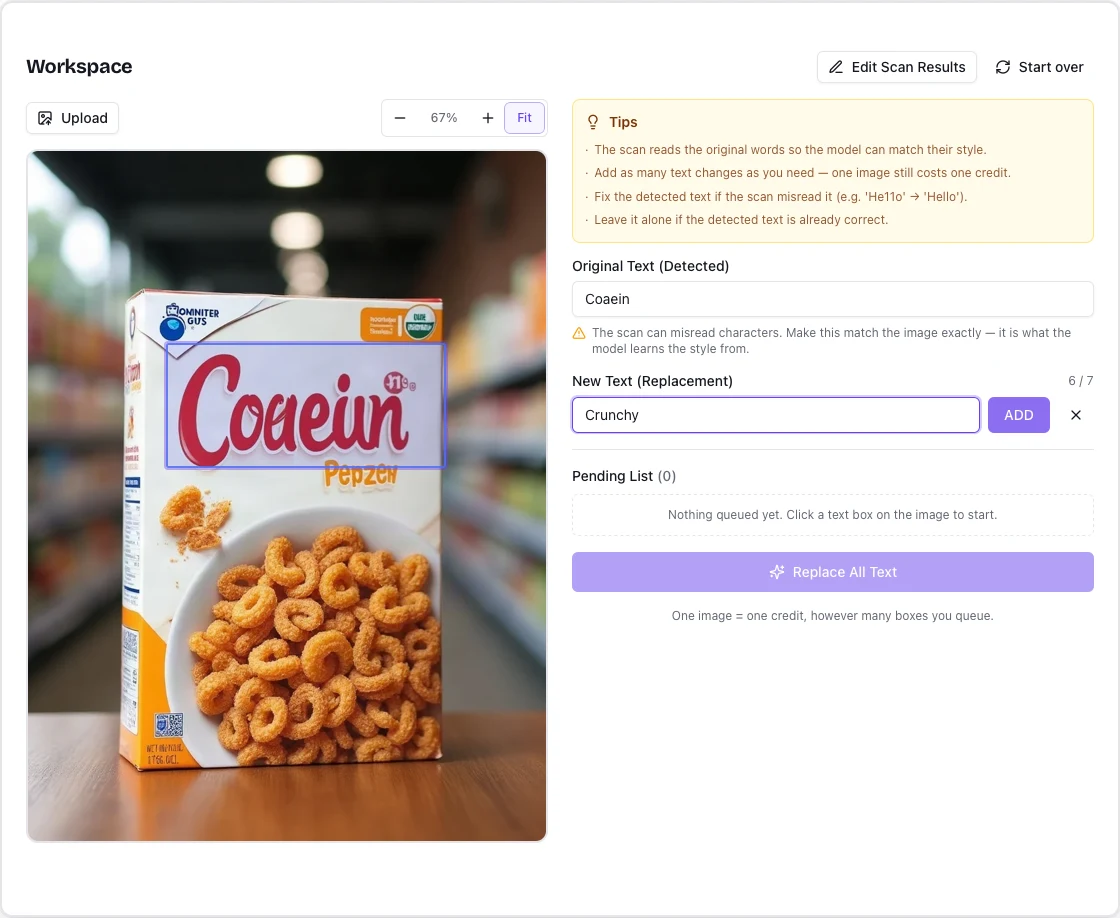
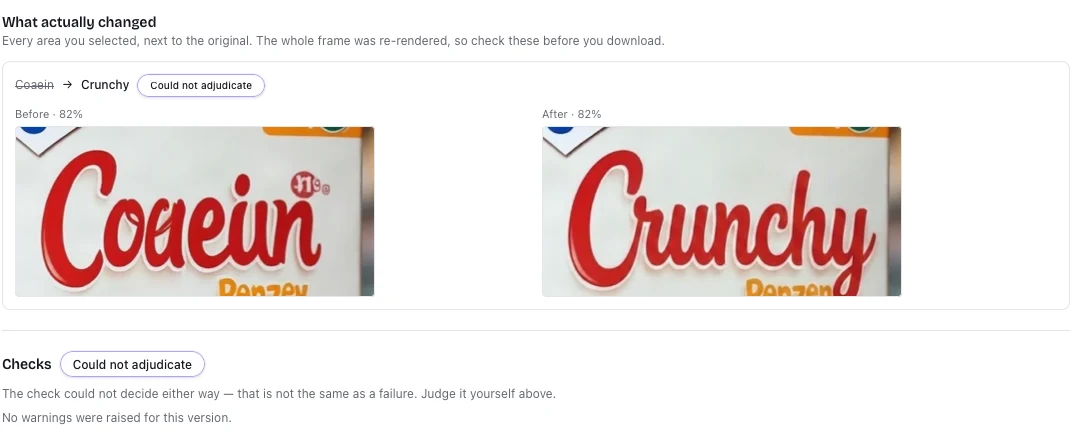
Follow these four steps in the workspace above. The screenshots show the editor with an archived packaging example.
Choose Upload or drop your image into the upload area. Use a PNG, JPG or WebP up to 10 MB. The text scan runs automatically. Start with a clear image so the letters are easy to read.
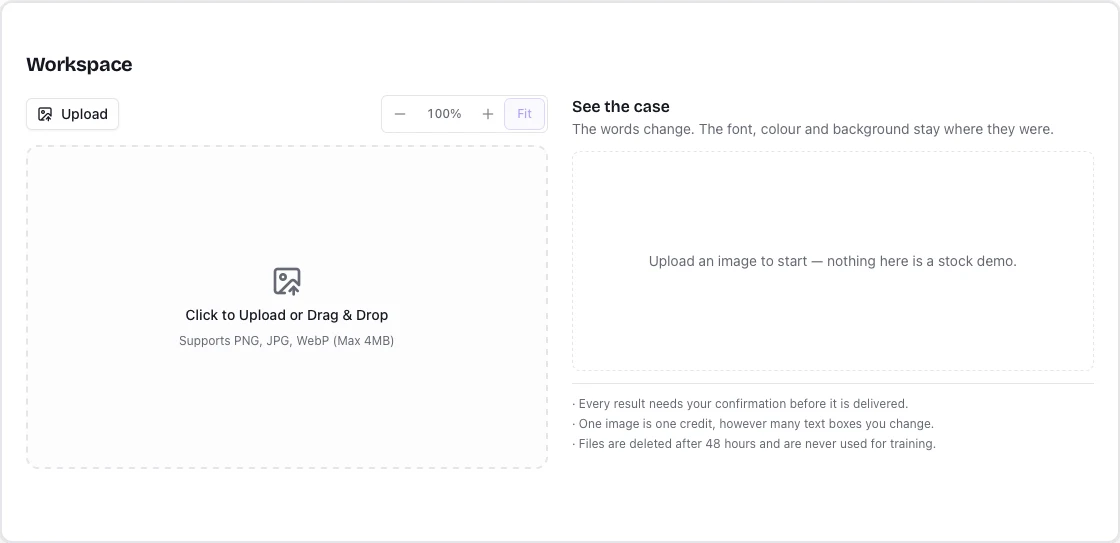
Select a text box on the image. Correct Original Text (Detected) if needed, then type New Text (Replacement) and click ADD. Repeat for other regions. When the Pending List is ready, choose Replace All Text. If a length warning appears, review the wording before proceeding.
Compare the edited areas with the original and review any warnings before downloading. AI redraws the whole image and may change details outside your selection.
Choose Download to save your selected version. Sign in or register if prompted; the same task remains available. Downloading does not use another credit. Free exports include a product mark; paid exports do not. Uploaded and generated files are kept for 48 hours, so save your download promptly.
Multilingual image text editing
Update English, Spanish, German, French, Japanese, and Simplified or Traditional Chinese text. Start with clear printed lettering or a simple UI image, select the words, and type your replacement.
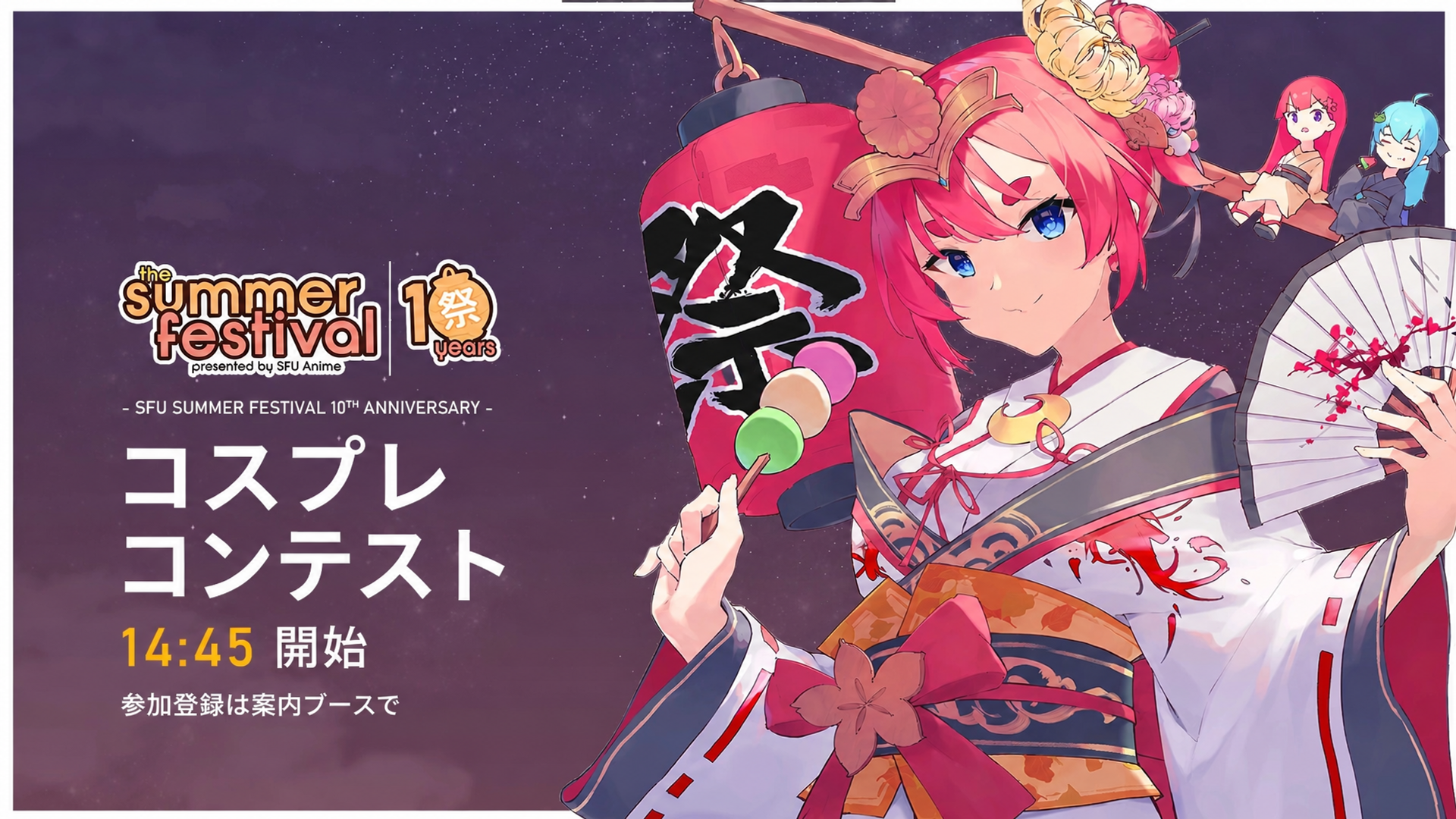
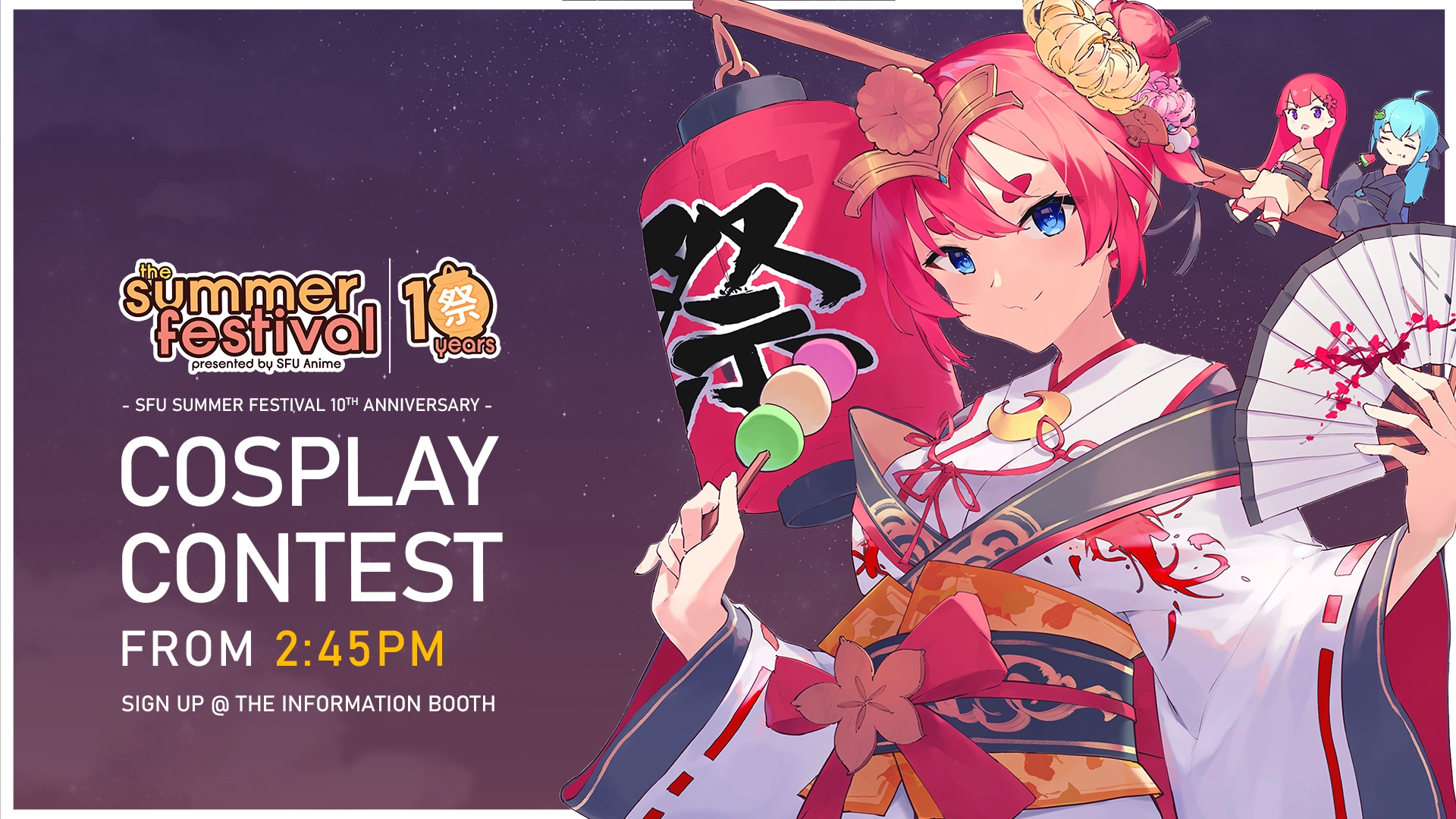
Replace the event title, starting time and registration note with prepared Japanese copy. Compare the lettering alongside the illustrated characters, festival logo and background.
COSPLAY CONTEST → コスプレ コンテスト
Actual project output from a supplied event poster, shown as an editing demonstration. Review font size, spacing and surrounding details; results vary by image.
Drag to compare the original and edited image.
Our small tests covered clear printed text and simple UI images in English, Spanish, German, French, Japanese, and Simplified and Traditional Chinese. Results vary by image and candidate. Dense screenshots, handwriting, vertical text and complex lettering need further testing.
You can enter Japanese as the replacement text. The example here changes COSPLAY CONTEST to コスプレ コンテスト using user-supplied wording. Prepare and proofread the translation yourself; RetypeWords does not automatically translate the image.
Try the image-language selector and rescan, then check the original text field. You can correct detected text or draw a missing box. Mixed-language text and curved apostrophes can still be misread, so inspect the final image too.
Use the browser upload control to select your picture. On a smaller screen, these controls help you inspect the text.
If none of the available versions is suitable, leave it unconfirmed or discard the task. Do not approve a result you do not want.
About changing text in a picture, step by step.
Choose Download to save your selected version. Sign in or register if prompted; the same task remains available. Downloading does not use another credit.
Edit an image