
⇄
01 / Storefront lettering
A new name. Same place.
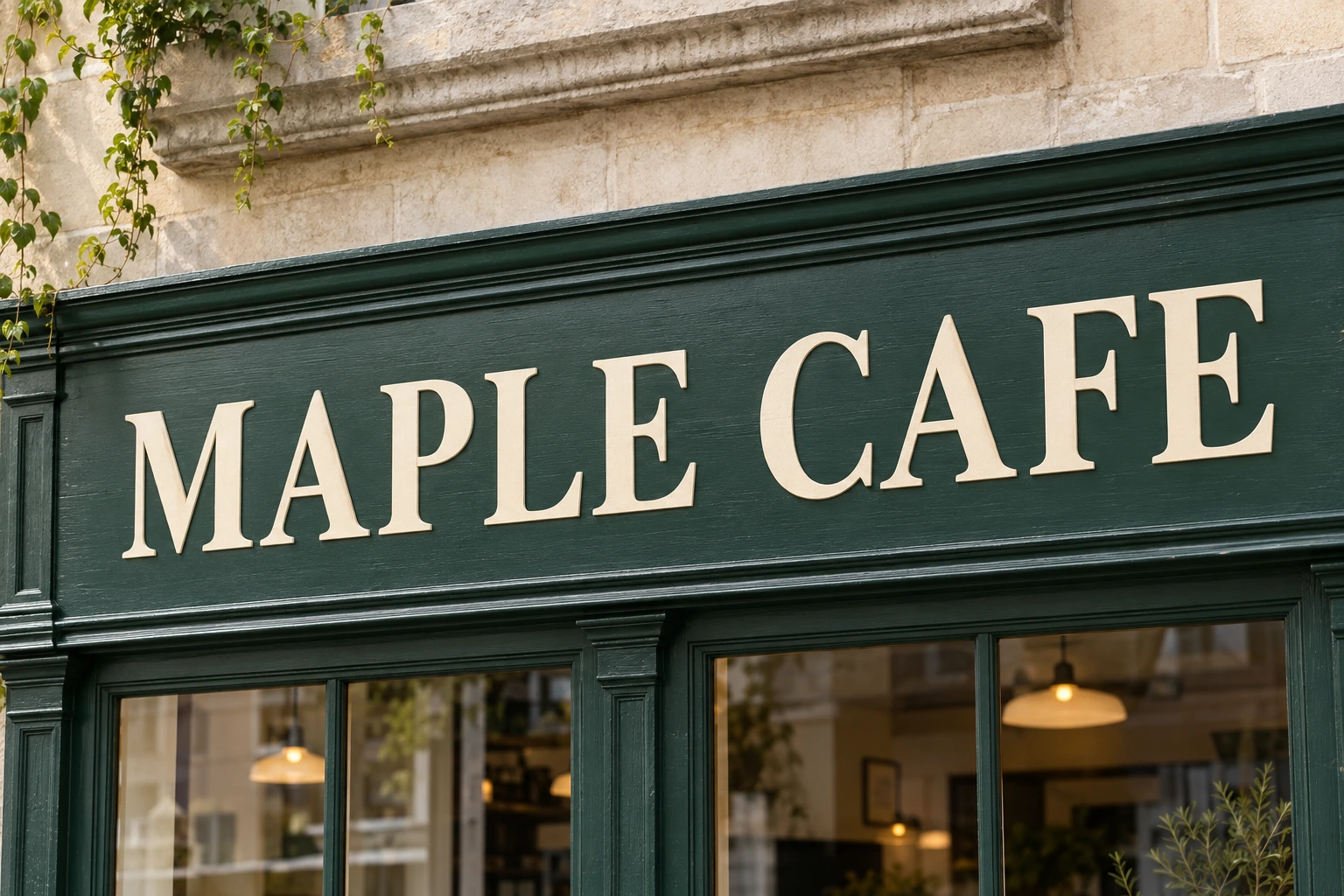
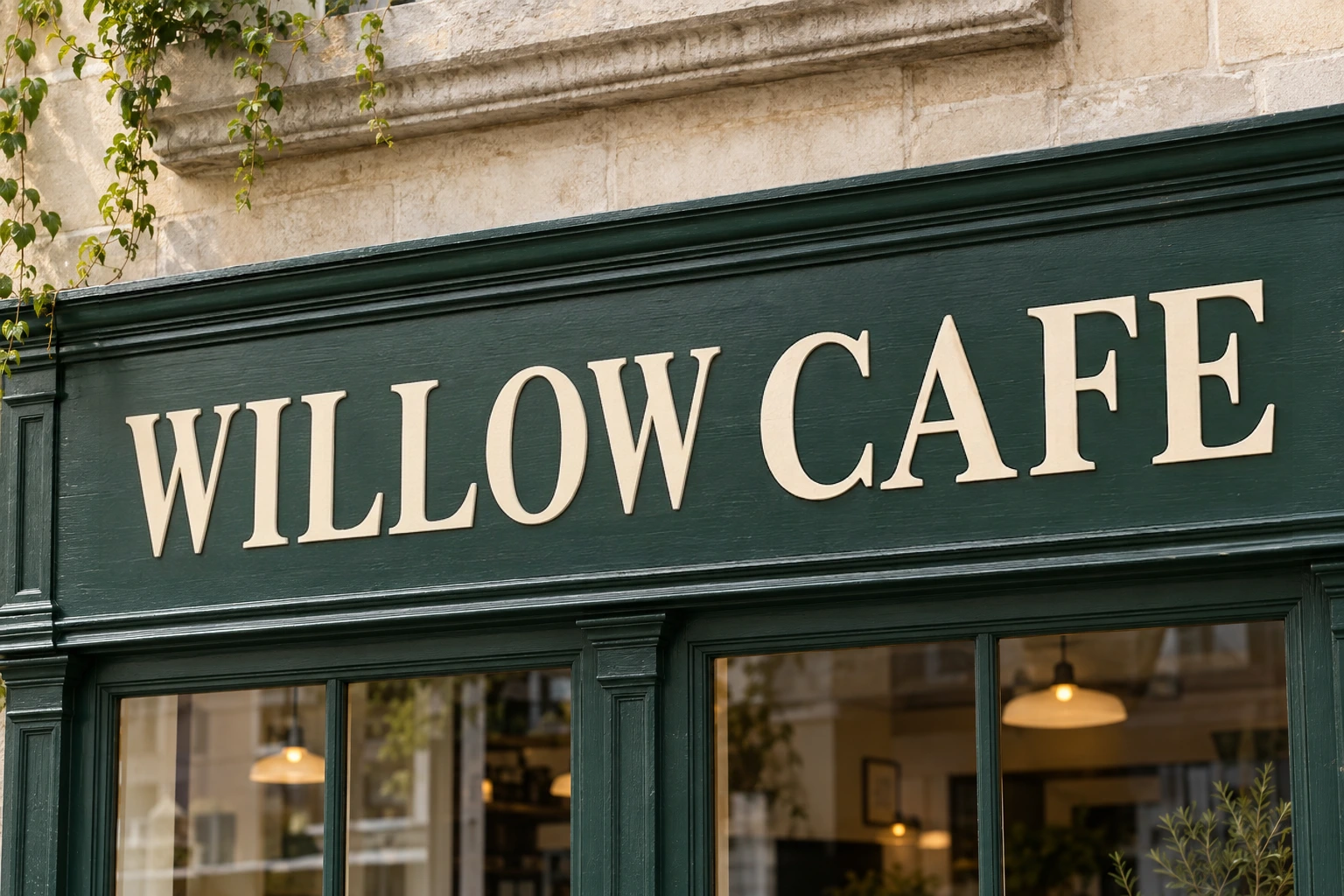
Rename a cafe sign in a generated street scene. Compare the lettering, perspective and surrounding frame.
Photos, not just artwork
Change the words on signs, labels and packaging in your photos — without Photoshop or a source design file.
Free to try · No account to start
Sign up to download. Free exports include a mark.
Upload the photograph, select the words and enter the replacement. Add it to the task and generate a new version. RetypeWords uses the lettering and photographed surface as a reference for the edit.
A shop sign, package label or menu is a useful starting point. Choose a clear photo taken roughly straight on, and keep the new wording close to the available space.
This is assisted editing: compare the lettering, light and texture, then choose the result you want to use. Strong reflections and curved surfaces need a closer look. A text edit does not promise that all surrounding details remain unchanged.
Rename a cafe sign in a generated street scene. Compare the lettering, perspective and surrounding frame.
Drag to compare · Generated scenes edited with RetypeWords.
A previous RetypeWords edit. Drag the comparison to explore the original and the result.
Three steps. Nothing to install, no source file needed.
Drop in a JPG, PNG or WebP straight from a camera or phone. A scan finds the readable words and boxes each one. Words that are too small, too blurred or too low-contrast may not be found — you can draw a box around them yourself.
Select the photographed words and enter your replacement. Add the change and choose Generate · 1 credit. Wording close to the original length helps it fit the sign or label.
Compare the lettering, lighting and surface texture with the original. Choose your preferred version, then sign in to download the PNG.
Readable printed lettering and even light provide a useful reference for the new words.
The clearest original photo gives you the best reference for comparing the new words.
About editing text in a photograph rather than in artwork.
Upload your image, choose the words and create a new version. Try one image without an account.
Edit a photo