
Step-by-step guide
How to Edit Text in an Image
A four-step walkthrough for replacing existing text in a photo, screenshot or scanned image. Try the editor above, then follow the illustrated instructions below.
Your workspace
PNG · JPG · WebPFree to try · No account to start
Sign up to download. Free exports include a mark.
How do you edit text in an image?
Upload a PNG, JPG or WebP, select the text and enter a replacement. Add each change to the Pending List, then choose Generate · 1 credit. Compare the result and choose Download.
Check Original Text (Detected) against the picture before generating. If the scan reads “2026” as “2O26”, correct that field first. For a missing region, open Edit Scan Results and use Draw Missing Box.
The editor aims to match the existing lettering, but it redraws the image. Inspect spelling, spacing, logos and background details in the full image as well as the close-up. A text-match check does not guarantee that everything else stayed the same.
How to change text in a picture: four steps
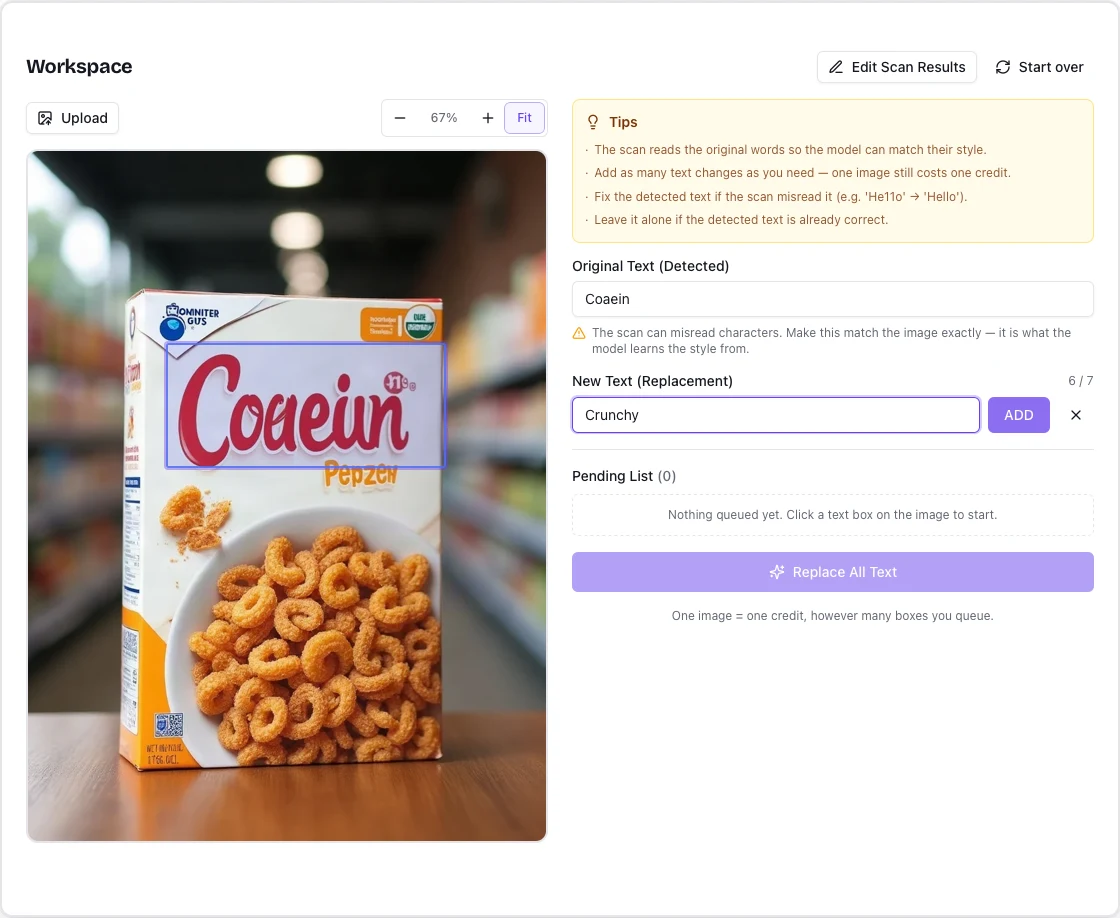
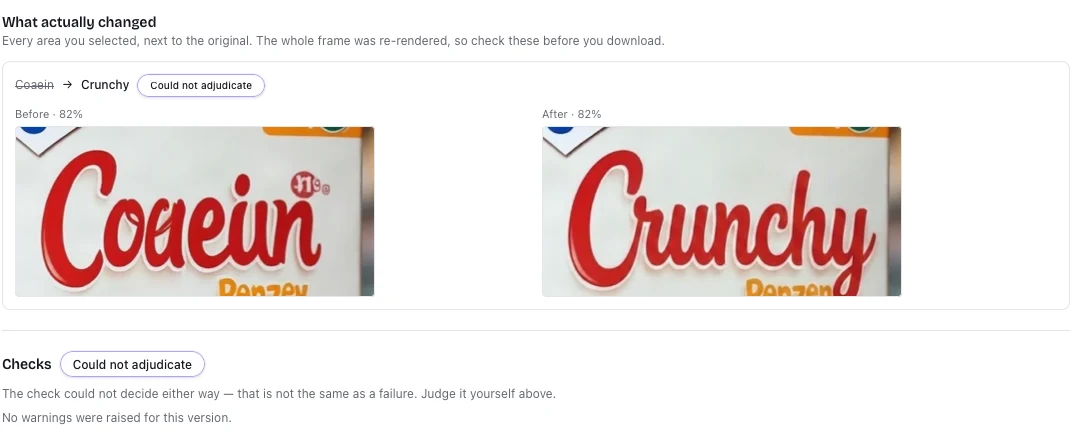
Use the workspace above. The screenshots show an archived packaging example; current button labels are described in the steps.
Upload your picture
Choose Upload or drop your image into the upload area. Use a PNG, JPG or WebP up to 10 MB. The text scan runs automatically. Start with a clear image so the letters are easy to read.
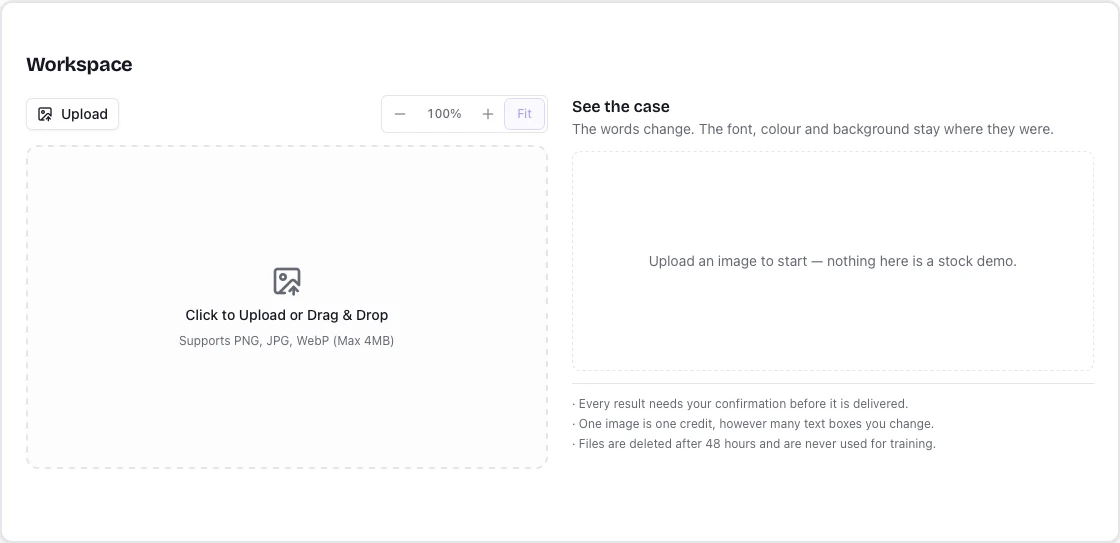
Upload your picture Select the screenshot to view it full size. Check the words and add replacements
Select a text box, correct Original Text (Detected), and enter New Text (Replacement). Click ADD for each change. Review the Pending List, then choose Generate · 1 credit. Check any length warning before proceeding.
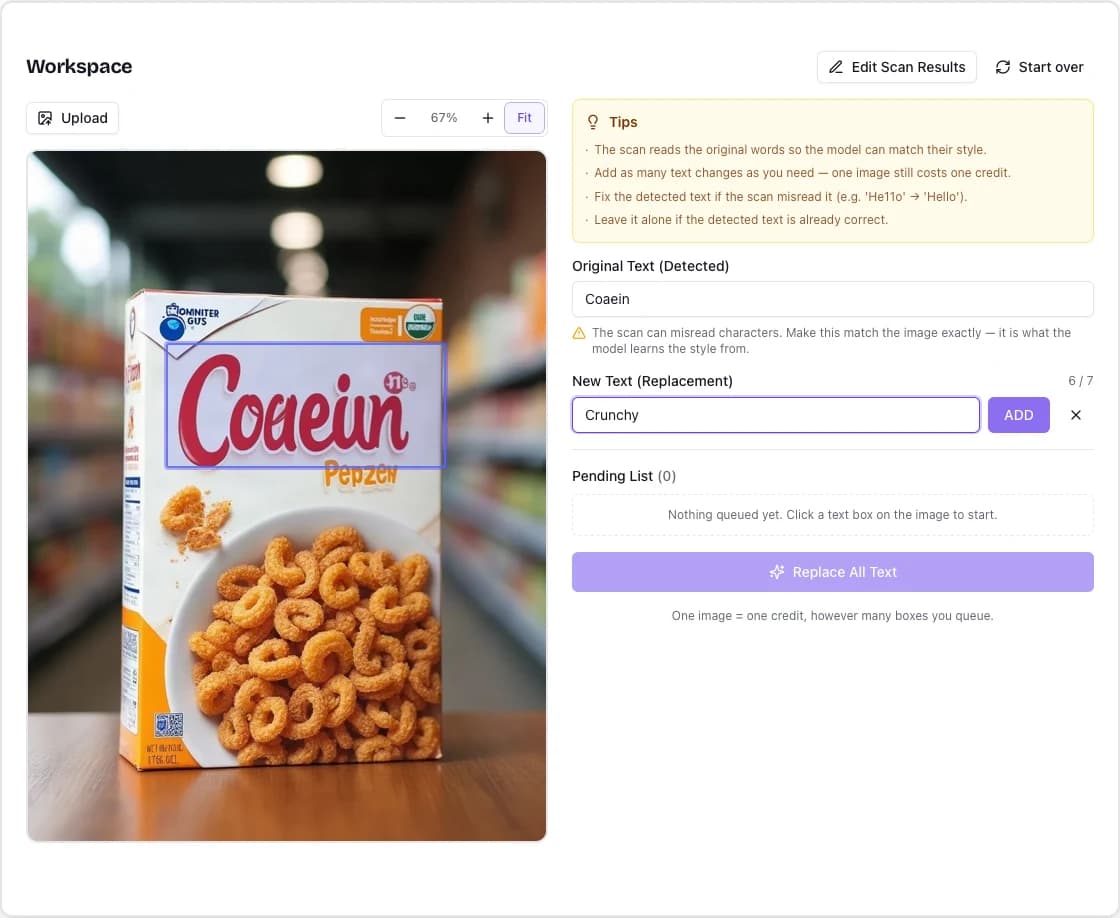
Check the words and add replacements This screenshot shows an earlier name for the generate button, Replace All Text. The button is now Generate · 1 credit. Select the screenshot to view it full size. Compare the candidate
Compare the edited areas with the original and review any warnings before downloading. AI redraws the whole image and may change details outside your selection.
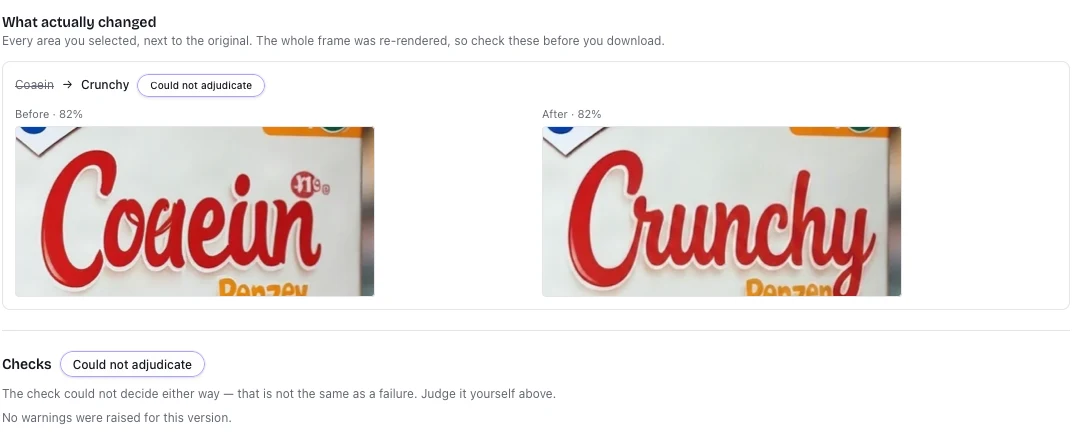
Compare the candidate Select the screenshot to view it full size. Sign in and download the PNG
Choose Download and sign in if prompted. Downloads and available retries on the same task cost no extra credits. Free exports include a product mark; paid exports do not. Save your files within 30 days.
Multilingual image text editing
How to edit Chinese or Japanese text in an image
Update English, Spanish, German, French, Japanese, and Simplified or Traditional Chinese text. Start with clear printed lettering or a simple UI image, select the words, and type your replacement.
- Upload your image and check the detected text. If words are missing, choose the image language and rescan. Changing the website language does not change the scan language.
- Select a word. When Select full line is available, use it to edit a complete phrase; Select individual words restores the smaller boxes. Correct any misread characters before adding your replacement.
- Type the new wording, or paste a translation you have already checked. Add the change, generate, then compare spelling, punctuation, text size and the surrounding image.
Language support and localization
Which languages can I edit in an image?
Our small tests covered clear printed text and simple UI images in English, Spanish, German, French, Japanese, and Simplified and Traditional Chinese. Results vary by image and candidate. Dense screenshots, handwriting, vertical text and complex lettering need further testing.
Can I replace English text in an image with Japanese?
You can enter Japanese as the replacement text. Prepare and proofread the translation yourself; RetypeWords does not automatically translate the image.
What if Chinese characters or accents are detected incorrectly?
Try the image-language selector and rescan, then check the original text field. You can correct detected text or draw a missing box. Mixed-language text and curved apostrophes can still be misread, so inspect the final image too.
Editing on iPhone or Android
Use the browser upload control to select your picture. On a smaller screen, these controls help you inspect the text.
Working with the editor
- Use Zoom in, Zoom out and Fit to inspect small lettering.
- Open Edit Scan Results to correct detected text or draw a missing box.
- Add all replacements to the same task before generating. Multiple text areas in one image still use one credit.
- On a small screen, scroll to the editing fields and review each close-up. Use a larger screen when fine details matter.
What to check yourself
- Small, blurred or low-contrast text may be difficult to scan and replace.
- Curved lettering, strong perspective and handwriting can produce inconsistent results.
- The whole image may change during generation. Check surrounding words, logos and background details.
- Automatic checks can be inconclusive. A matching word alone does not establish that the image is ready to use.
Review every version before use. A generated image uses its credit even if discarded. If the task ends without an image, the credit is returned automatically.
Questions people actually ask
About changing text in a picture, step by step.
Try it on the picture in front of you.
Choose Download to save your selected version. Sign in or register if prompted; the same task remains available. Downloading does not use another credit.
Edit an image