
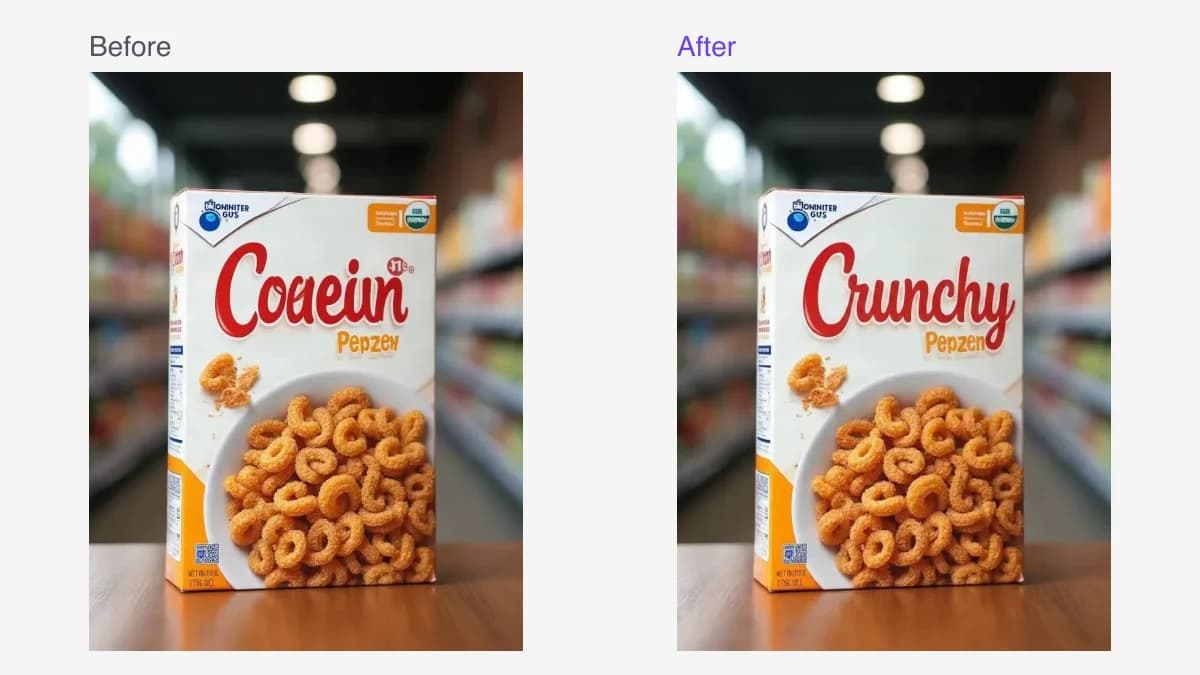
Yes. ChatGPT and Gemini can edit text in an uploaded image. Describe which words to replace and what the new text should say, then inspect the result. For a workflow built around selecting text, queuing several replacements and comparing the result before download, you can also try RetypeWords.
The right choice depends on the task: a conversational edit, a series of text changes, or a design that needs precise manual control. Here is how to get started with each approach.
How to edit image text with ChatGPT
- Upload your image to a ChatGPT conversation.
- Describe the replacement. Identify the wording and its location, such as “Change SUMMER SALE at the top to AUTUMN SALE.”
- Review the generated edit. Open the result and inspect the new wording and surrounding details. You can request another revision; the image editor also offers a selection tool for directing an edit to an area.
- Save the version you want. Keep the original for comparison.
OpenAI documents both uploaded-image editing and area selection. A selection guides the edit, but changes can extend beyond it. See the official ChatGPT image editing instructions.
How to edit image text with Gemini
- Open Gemini and upload the image you want to edit.
- Enter a specific replacement request, including the original text, new text and its position.
- Submit the request and inspect the result. Follow up in the conversation if you need a different version.
- Download the chosen image. On desktop, the image offers a full-size download control.
You can also continue editing an image from Gemini's Library. Google describes these options in its official image editing guide. Feature access can depend on your account and location.
A prompt you can adapt
Start with one clearly identified change. This is a suggested template, not a tested guarantee:
Edit the attached image. Replace “SUMMER SALE” at the top with “AUTUMN SALE”. Match the existing lettering's weight, colour, spacing and alignment. Keep the image dimensions, composition, background and all other wording as close to the original as possible. Return the edited image.
Replace the quoted strings with your own wording. For a product label containing two units, specify the whole final line, for example 200 ml / 6.76 FL.OZ., so the intended text is unambiguous.
If the result changes too much, return to the original and narrow the request to one text area. Short replacement wording is easier to fit into an existing layout than a new sentence. For distorted or garbled source lettering, include both its location and the intended final spelling.
Which workflow fits your edit?
| Your task | A useful starting point | What you control |
|---|---|---|
| Revise a generated image while discussing its design | ChatGPT or Gemini | Describe changes and iterate in conversation |
| Change several text regions in an existing picture | RetypeWords | Select detected words, queue replacements and compare candidates |
| Add a caption or cover text on a plain background | A text overlay tool | Position and style a new text layer |
| Precisely reconstruct lettering or preserve surrounding pixels through manual work | A layer-based editor such as Photoshop | Retouch the background and place or transform the new lettering |
Both chat assistants and RetypeWords use generative image editing. Results can change nearby details; RetypeWords adds a dedicated text-selection and review workflow. It does not make the image model's output pixel-identical outside your selection.
If you still have the original editable design file, changing its text layer is often the most direct route. With a flattened JPG or PNG, the visible letters are part of the image, so replacing them also involves reconstructing the area behind them.
Change several text areas with RetypeWords
Open the image text editor when you want to work directly with the words on your picture:
- Upload a PNG, JPG or WebP up to 10MB. Choose the clearest available copy.
- Click a detected text region. Check Original Text (Detected) and correct any scan errors, then enter New Text (Replacement).
- Click ADD for each replacement. Check the Pending List, then choose Generate · 1 credit to run the queued changes together.
- Compare and download. Inspect the full image, close-ups and any warnings. Choose your preferred version and download it. You can try an edit without an account; sign in or register to download.
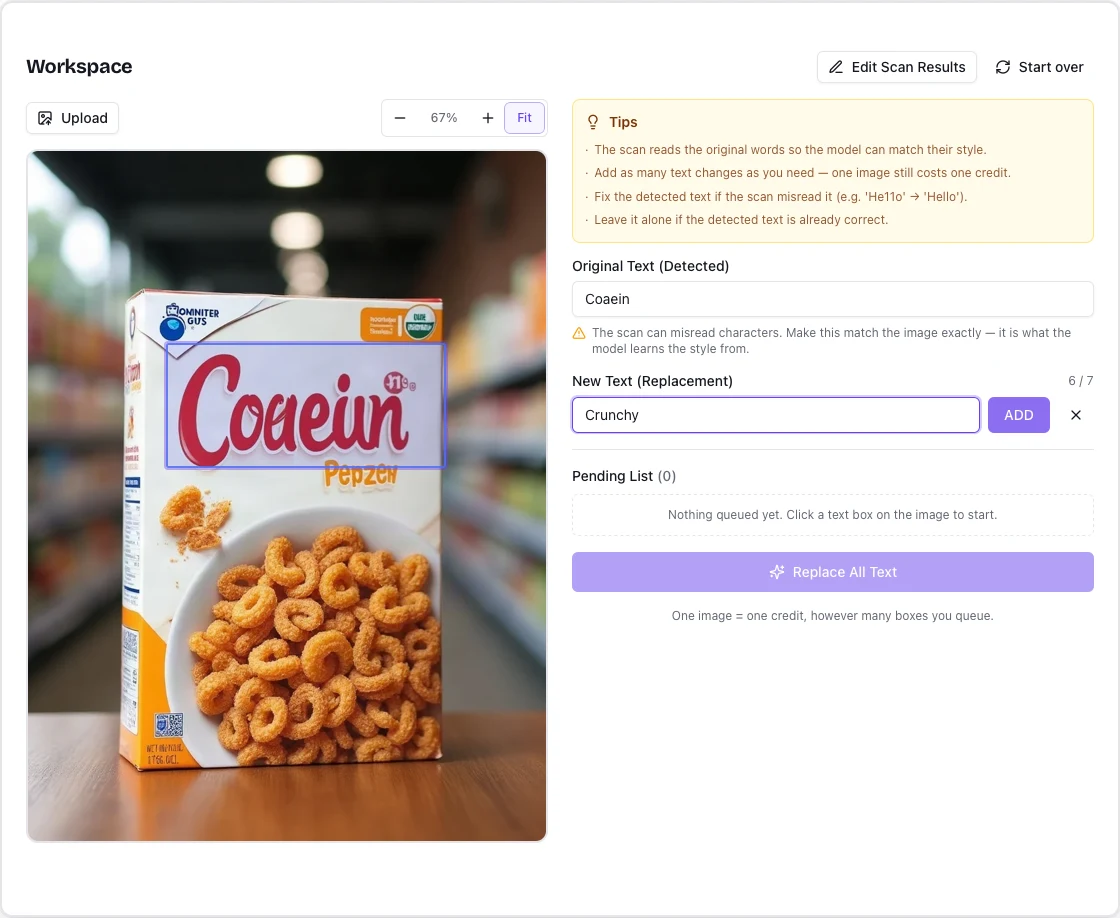
Click ADD after entering a replacement so it appears in the Pending List. One generation task uses one credit, including multiple queued text areas. The screenshot predates a button rename: the button it shows as Replace All Text is now Generate · 1 credit.
Free exports include a visible product mark; paid exports do not. One credit is deducted when a new generation request is accepted. Available retries within the same task and downloads use no extra credits. If the task ends without an image, the credit is returned automatically. A generated image uses the credit even if you do not download it. Uploaded and generated files are kept for 30 days. The full walkthrough covers reviewing candidates and available retries, and pricing explains the plans.
What to check in the result
The cereal-box example at the top shows an archived edit that replaces a generated wordmark with Crunchy. The box, shelf background and tabletop remain recognisable, while the requested lettering changes.
A small unselected mark on the same box illustrates why a full-image check is useful:
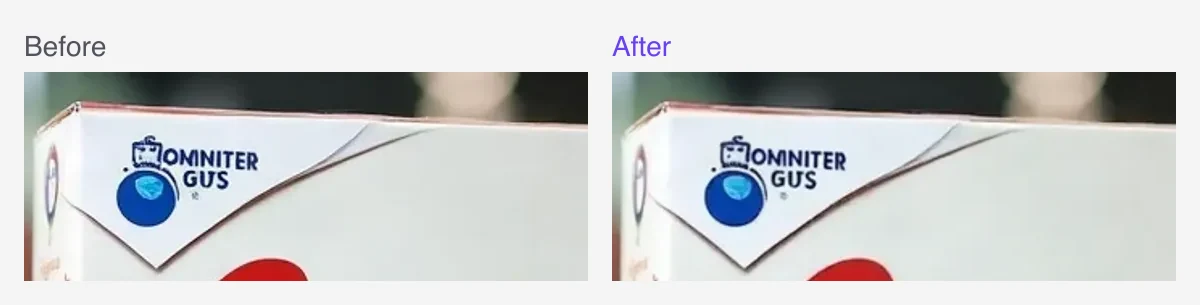
The corner wording remains garbled, and the icon's outline differs slightly. Editing the main wordmark did not correct every piece of text on the box.
For any editor, check these three things before using the result:
- The requested text: spelling, punctuation, numbers and line breaks.
- The lettering: spacing, alignment, shadows and how it fits the available area.
- The rest of the image: other words, logos, texture and important product details.
For garbled lettering specifically, see fixing text in an AI-generated image. If matching the lettering is your priority, the same-font editing guide explains visual matching and difficult styles.
Frequently asked questions
Can ChatGPT change image text without changing the background?
You can request a focused edit and use a selection to identify the area. Inspect the returned image: neither the request nor the selection guarantees that all surrounding pixels stay unchanged.
Can Gemini fix a typo in an image?
Yes. Upload the image and identify the typo and its replacement. Include the location if the same word appears more than once, then check the spelling and layout in the result.
Will the replacement use the same font?
Generative editing aims to reproduce the visible style, including weight, colour and spacing. It does not identify or supply the original font file. Decorative lettering, steep perspective and very small text can need further work.
Can I try RetypeWords for free?
You can try an edit without signing up. Sign in to download; free exports carry a visible product mark. A generated image uses its credit even if you do not download it. See plans and credits.
What if the image is a product photograph?
Use the clearest source and check the whole label, including units and nearby numbers. Our product photo text guide shows examples of updating a capacity line, a packaging wordmark and a promotional price.
Instructions checked against the linked official guides on September 7, 2026. The before/after images are archived RetypeWords evaluation examples, not a ChatGPT-versus-Gemini test or outputs from the current production setup. The workspace screenshot illustrates the interface using an archived result.
More Posts
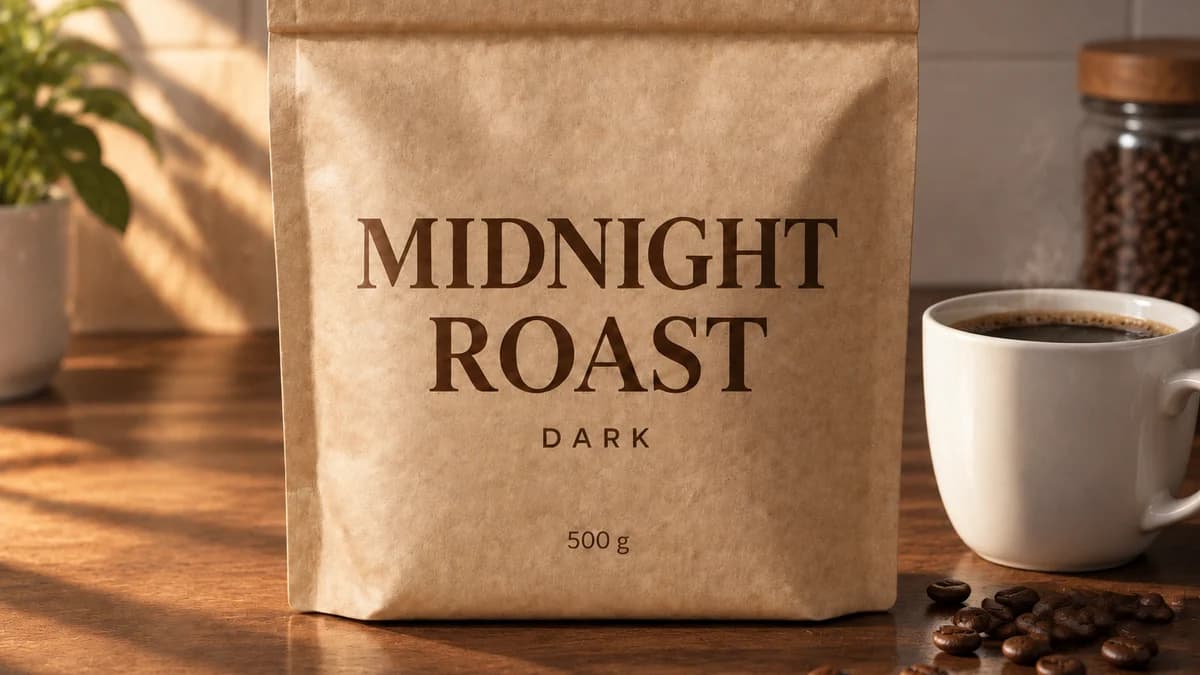
GPT Image 2.5 Image Editing: Text, Backgrounds & 7 Prompts
GPT Image 2.5 image editing explained with a real three-step before-and-after on one product photo, seven copyable prompts for text, backgrounds and objects, and a Sunburst vs Flare guide.

How to Change the Text on a Product Photo Without Reshooting It
Update a label, packaging mockup or promotional price using the photo you already have. Follow four steps and see real before-and-after examples.