
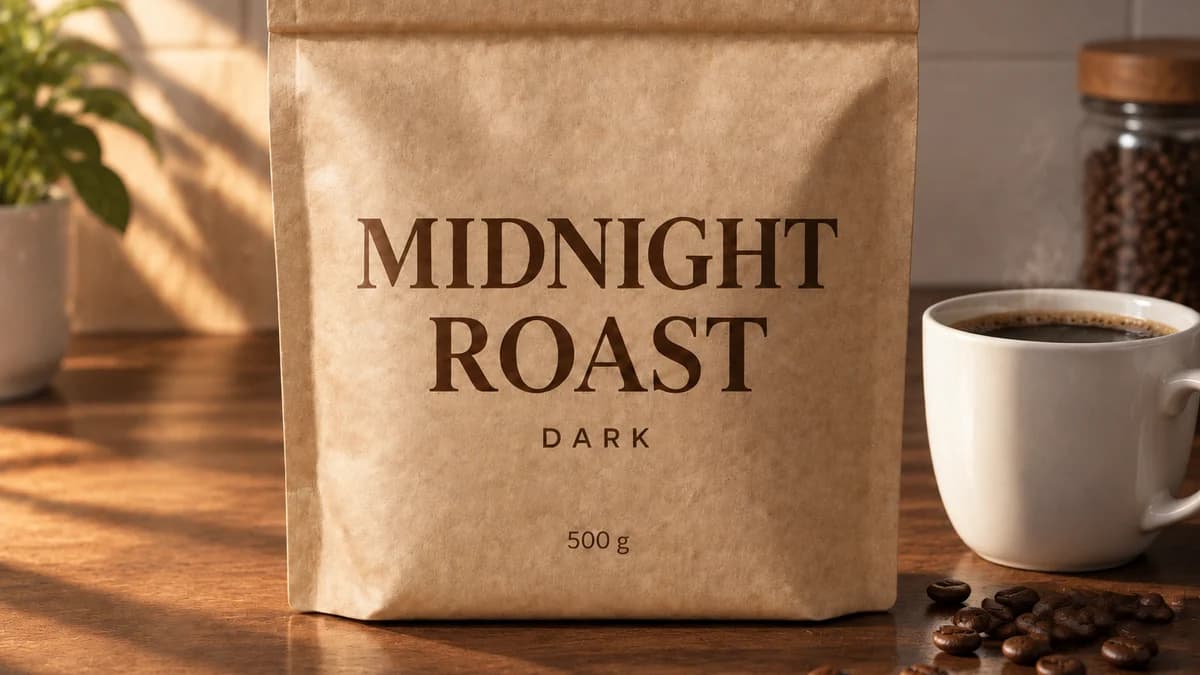
GPT Image 2.5 gives image editors two new model options: Sunburst and Flare. OpenAI positions Sunburst around editing precision and Flare around fast, everyday image generation. For someone updating a poster, correcting a label or replacing a prop in a photo, the useful question is how to specify the change and judge the result. See the official Sunburst and Flare descriptions.
If your immediate task is to replace words in an existing picture, you can open the RetypeWords image text editor. This guide also includes prompts for a GPT Image 2.5 editing workflow. Use the seven copyable prompts below for specific changes, from correcting a label to replacing a product-photo background.
What is GPT Image 2.5?
GPT Image 2.5 is an OpenAI image model family with text and image inputs and image outputs. Its two model IDs are gpt-image-2.5-sunburst and gpt-image-2.5-flare. The official documentation lists both for use through the Image API or the Responses API image generation tool. The model names describe API options; they do not establish which image model a particular ChatGPT account is using. OpenAI model documentation.
GPT Image 2.5 Sunburst vs Flare
| Model | OpenAI's positioning | A practical evaluation question |
|---|---|---|
| Sunburst | Precision-focused image generation and editing | Does it make the requested local change while preserving the details you care about? |
| Flare | Fast, high-quality everyday image generation | Does it deliver an acceptable result at the speed your workflow needs? |
These are starting points for choosing what to test. We have not run a controlled Sunburst-versus-Flare benchmark for this article, so the table does not claim a measured winner for small text, product labels or repeated edits. Flare model documentation.
What can GPT Image 2.5 do with an existing image?
OpenAI highlights improvements in focused editing, reference-photo fidelity and consistency across successive edits. That makes the model relevant when you want to change a product, background or piece of copy while retaining the surrounding composition. It also supports generating new images from descriptions. OpenAI’s Images 2.5 announcement.
| Editing task | What to describe | What to inspect |
|---|---|---|
| Replace text in an image | Exact wording and its location | Spelling, line breaks and nearby numbers |
| Change a photo background | New setting and subject to retain | Subject edges, light direction and shadows |
| Replace an object in a photo | Target’s colour, position and replacement | Other objects, scale and perspective |
| Edit a product photo | Material, colour or setting to change | Packaging shape, logo and reflections |
| Update a poster or flyer | Specific headline, price or main visual | Small print and the remaining layout |
For marketing assets, work on one clear change at a time. A replacement object may need a different shadow; a translated headline may need different spacing. Describe the intended result rather than asking the model to freeze details that must change with it.
A worked example: three edits on one product photo
Everything in this section is an actual GPT Image 2.5 Sunburst run on the same picture rather than an illustration. Each step is one editing request, and the wording in every result was checked by running text recognition over it instead of judging it by eye.
Step 1: the starting image
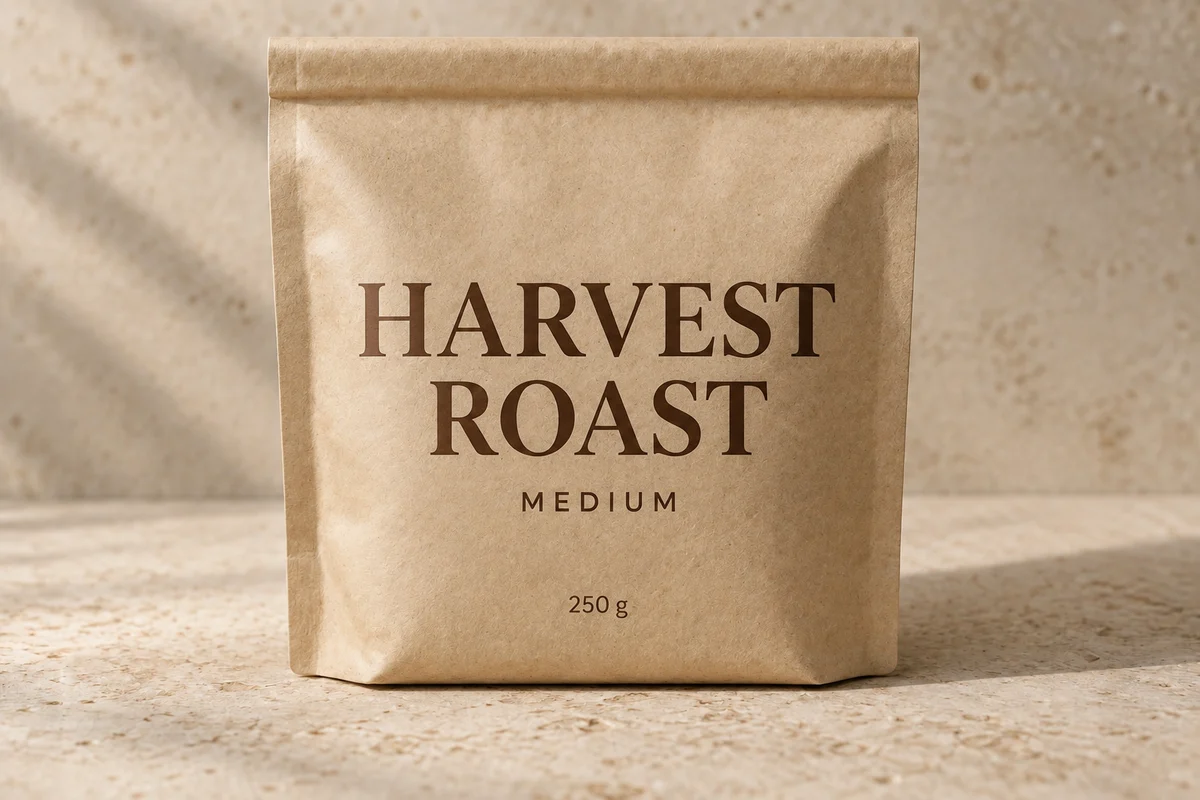
The source image: one product, one plain surface, four lines of print.
Step 2: change only the words
Edit only the printed wording on the coffee pouch. "HARVEST" becomes "MIDNIGHT". "MEDIUM" becomes "DARK". "250 g" becomes "500 g". "ROAST" stays unchanged. Each replacement keeps the original typeface, weight, ink colour, letter spacing, line position and alignment. Preserve the pouch shape, folds, kraft paper texture, the stone surface, the shadow and the framing exactly.
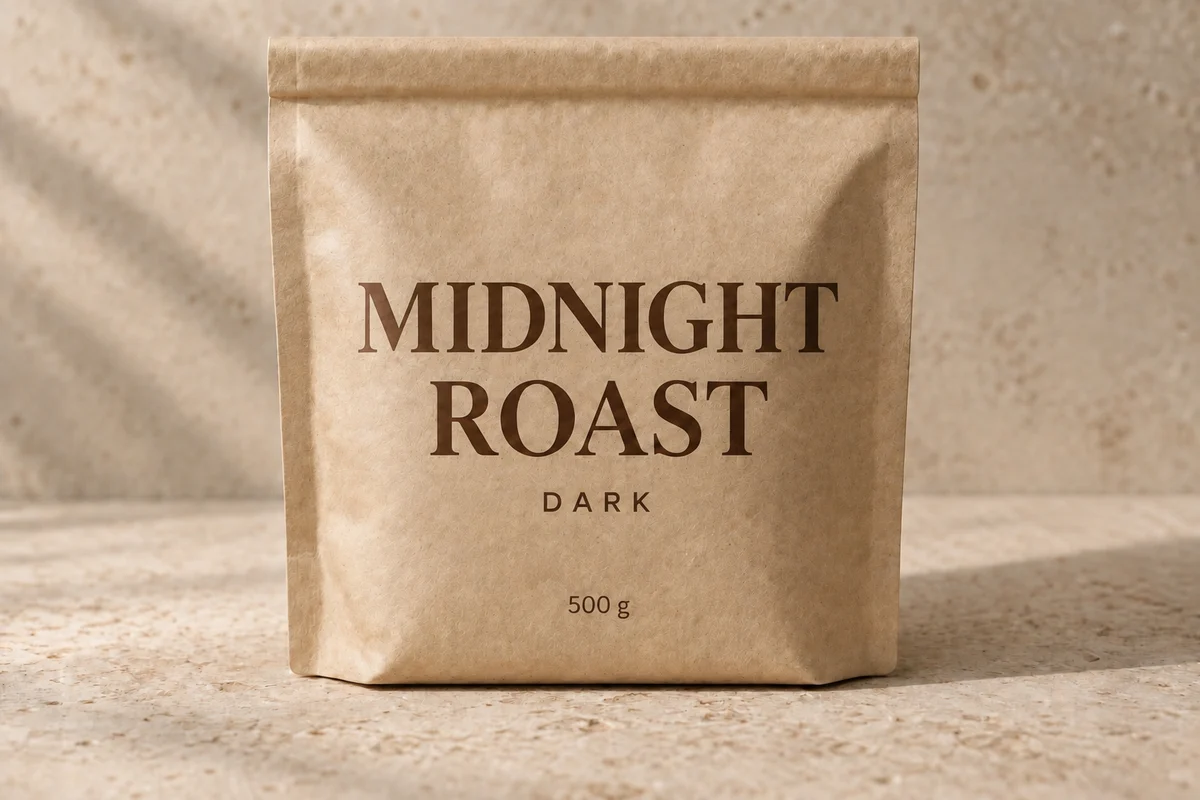
Three replacements landed and the word that was meant to stay was left alone.
We ran this step twice: once with a short instruction, once with the longer version above that names every element to keep. Both produced the right words. The longer one changed less of the rest of the picture — roughly 5.7% of the pixels outside the text moved, against 7.8% for the short instruction.
That is worth flagging precisely because it is not a universal rule. On a different image, replacing an object rather than wording, we saw the opposite: the longer preservation instruction produced more drift, not less. Treat "name what to keep" as something to test on your own image rather than a setting that always helps.
Step 3: change the whole scene, keep the packaging
Place the same coffee pouch on a dark walnut kitchen counter in warm early-morning light coming from the left. Add a white ceramic cup of black coffee to the right of the pouch and a small scatter of roasted coffee beans on the counter. Keep the pouch itself unchanged: its shape, kraft paper texture, folds, and every printed word exactly as they appear. Match the new lighting on the pouch and add a natural contact shadow.
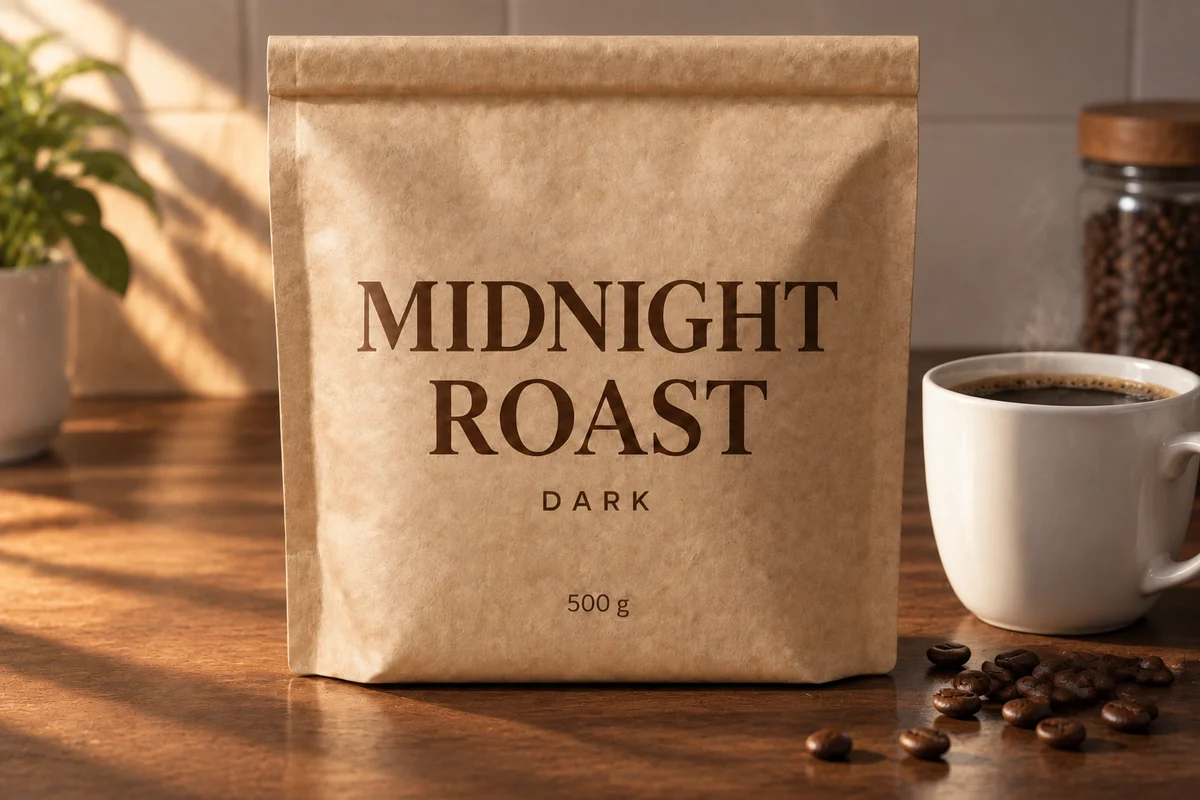
A different surface, a different light, the same four words on the packaging.
This is the step worth studying. Around 90% of the pixels in the frame changed: the surface, the background, the direction of the light and the colour of every part of the pouch. A pixel-level comparison would report this as a complete rewrite. Read the packaging, though, and the wording from step 2 is still correct.
That is the practical lesson for a product-photography workflow. After a lighting or scene change, comparing two images cannot tell you whether your text survived — you have to read it. It is also why the review section below is about checking named details rather than glancing at a before-and-after.
These are single runs on one image, not a benchmark, and they are not a success rate. They show what happened on this picture with these instructions.
How to edit text in an image with GPT Image 2.5
Use an application or API integration that explicitly supports a GPT Image 2.5 editing model. Supply the existing image and an editing instruction. OpenAI documents image editing in its image generation guide.
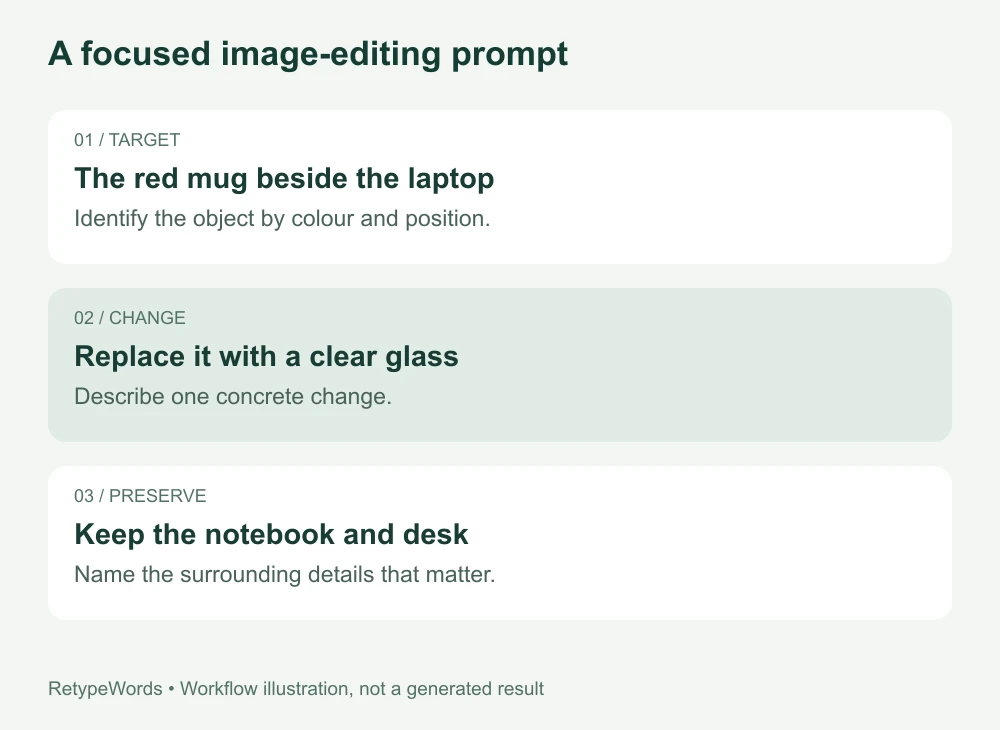
Workflow illustration: identify the target, describe the change, and name what should remain.
A useful request contains four details:
- Where the text is: “the large headline at the top,” or “the capacity line near the bottom of the bottle.”
- What it says now: quote the original wording when it is readable.
- What it should say: provide the complete replacement, including punctuation and units.
- What should stay consistent: describe the lettering, layout and surrounding elements that matter.
For a promotion, try:
Edit the uploaded poster. Replace the large headline “SUMMER SALE” with “AUTUMN SALE”. Keep the existing lettering style, colour, alignment and approximate visual size. Preserve the product photograph, the price, the small print and the overall layout. Return the edited poster.
If the new wording is longer, make the layout decision explicit. For example, add “Keep the headline on one line; reduce its size slightly if needed.” Otherwise, you have left the model to decide between smaller lettering, tighter spacing and an extra line.
When a number has several occurrences, location matters as much as the number itself. “Change 19 to 12” leaves more room for ambiguity than “Change the large central price from $19 to $12; keep the date and phone number unchanged.”
7 GPT Image 2.5 prompts for text, backgrounds and objects
These templates are our suggested starting points. Adapt them to your image, and review the whole result after each edit.
1. Fix misspelled text in an AI-generated image
In the uploaded image, correct “COFEE” on the café sign to “COFFEE”. Keep the sign's lettering style, colour and perspective. Preserve the building, windows, people and all other signs.
For badly garbled lettering, describe its location and specify the final text even if you cannot transcribe the original. Our guide to fixing text in AI-generated images covers this task in more detail.
2. Edit text on a product label
On the bottle label, replace the entire capacity line “125 ml” with “200 ml”. Match the existing text's weight, colour and alignment on the curved surface. Keep the product name, ingredients, bottle shape and background unchanged.
Check whether the label has a second capacity value elsewhere. If it does, include the complete intended wording for both locations. For an image used in a listing, make sure the finished label accurately describes the product being sold. See editing text on a product photo for label and packaging examples.
3. Replace an object in a photo
Replace the red ceramic mug on the left side of the desk with a clear glass tumbler of similar height. Match the existing light direction and add a natural contact shadow. Keep the laptop, notebook, desk surface and camera framing consistent.
This request identifies both the target and the replacement. It also allows the shadow to change with the object. Asking for a new transparent object while freezing every pixel of the old object's reflection or shadow can produce conflicting instructions.
4. Change an object’s colour without changing its texture
Change only the fabric colour of the sofa to dark forest green. Preserve its shape, woven texture, seams, cushions and lighting. Keep the walls, floor, side table and objects on the table unchanged.
Describe the material you want preserved. “Make the sofa green” specifies colour but leaves less guidance about whether the result should still look like the same fabric.
5. Change a photo background while keeping the subject
Replace the background with a softly lit beige studio backdrop. Keep the person’s face, hairstyle, clothing, pose and position consistent with the original photo. Match the new background lighting to the subject and preserve a natural shadow.
Name the subject you want retained. For a product photo, replace the person-specific details with the product’s shape, material, colour and packaging text. Review hair, transparent edges and reflective surfaces at full size.
6. Create a new background for a product photo
Place the existing green skincare tube on a pale stone countertop with softly blurred plants in the background. Preserve the tube’s shape, green colour, orientation and packaging wording. Use soft daylight and a natural contact shadow.
This prompt targets a lifestyle product image from an existing reference, and it is the change demonstrated in step 3 of the worked example above. Keep the product description consistent across variations so the setting changes are easier to compare. If you only need to update packaging wording, use the product-photo text editing workflow. We are building this described-change workflow into RetypeWords as Retype Anything, which is not open yet.
7. Replace text in a poster with another language
Replace the headline “SUMMER SALE” with the Spanish headline “REBAJAS DE VERANO”. Keep the headline in the same area and match its visual style. Adjust the font size to fit the new wording on one line. Preserve the price, date, product image and other text.
Provide the final translation when exact wording matters. This separates your language choice from the layout edit. For a workflow using text you have already translated, see editing image text in different languages.
Does a selection keep the rest of the image unchanged?
A selection helps direct the edit, but it is not a pixel lock. OpenAI says GPT Image uses masks as guidance and may not follow their exact shape precisely. A carefully written prompt and a mask can still leave changes that need review. Official mask guidance.
After changing text, inspect the spelling, line breaks and nearby numbers. After replacing an object, inspect its edges, contact shadow and reflections. In both cases, compare unrelated logos, faces and small text against the original.
As the scene change above showed, this has to be done by reading the details rather than by comparing the two pictures as a whole. A relit image differs from its original almost everywhere, so "most of the picture changed" tells you nothing about whether the four words you care about are still correct.
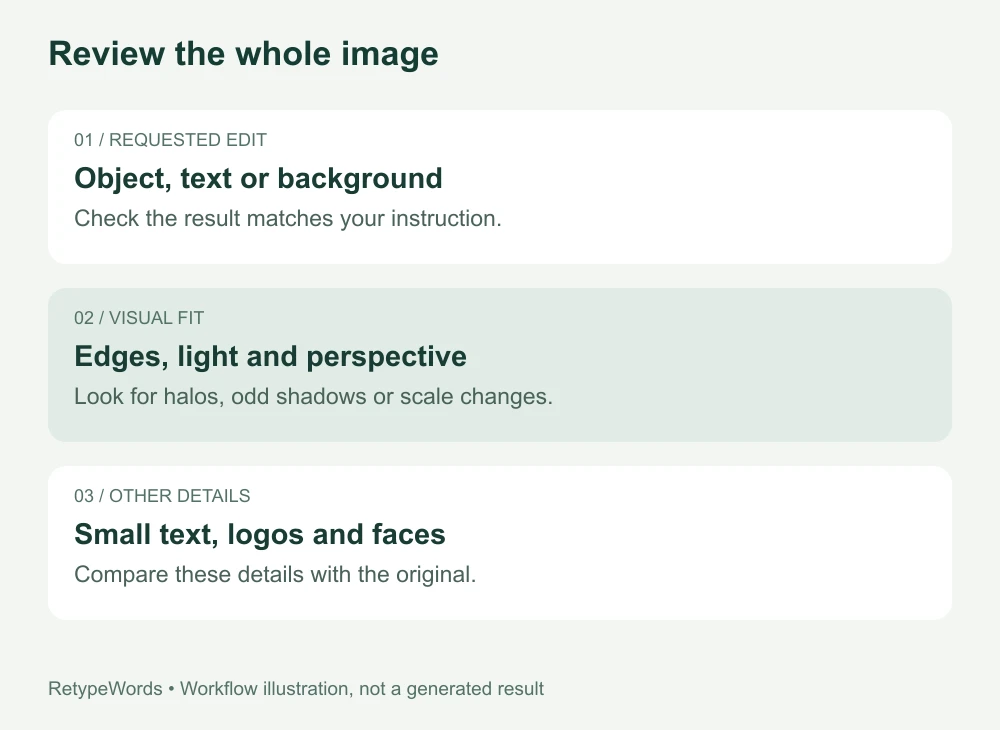
Workflow illustration: review the entire image, including details outside your requested edit.
For repeated edits, save the original and each version you accept. If an unwanted change appears in version three, you can return to version two and try a narrower request. Continuing from a damaged version makes that unwanted detail part of the next input.
Try a dedicated image text editor online
A prompt-based editor is a useful fit when your request includes appearance changes such as a different prop or fabric colour. A dedicated text workflow is useful when your task is a list of exact word replacements.
With RetypeWords, you can:
- Upload a PNG, JPG or WebP image up to 10MB.
- Select the detected text, correct any recognition errors and enter the replacement wording.
- Add your replacements and submit the generation.
- Compare the candidates, inspect any changes and download your preferred version.
Generation uses one credit when the submission is accepted. Same-task retries and downloads do not cost extra credits; attempts are limited. A task that ends without any generated candidate is refunded. You can try an edit without signing up; downloading requires an account. Free exports carry a product mark, and files are retained for 30 days. See plans and credits and the full editing walkthrough.
RetypeWords uses generative editing too, so visual matching still needs review. Its value here is selecting and organising text replacements, with a comparison workflow before download. For lettering that is difficult to reproduce, the same-font editing guide explains what visual matching means.
Is RetypeWords using GPT Image 2.5?
As of September 10, 2026, we are evaluating a GPT Image 2.5 upgrade; it is not yet our production default. The three images in the worked example above were produced with GPT Image 2.5 Sunburst for this article, not by our production editor.
We are also building Retype Anything, a mode for describing object, background and colour changes in words rather than typing replacement text. It is not open yet. You can read what it will cover and join the waitlist on the Retype Anything page.
Image text editing is available today. We will update this article when the new model or editing mode is released, with every example identified by the model and workflow that produced it.
Frequently asked questions
Can GPT Image 2.5 replace text in an uploaded image?
Image editing is supported. Give it the source image, the text location and the full replacement wording. Exact spelling and layout should be checked in the returned result rather than assumed from the model name.
Is Sunburst better than Flare for text editing?
Sunburst's precision-focused positioning makes it a sensible candidate to evaluate. We do not yet have a controlled text-editing comparison that establishes a winner. Test both on the same source image and instruction if the choice affects your workflow.
Can GPT Image 2.5 edit text while keeping the same font?
An image edit produces pixels, not the original font file. Review whether the visible weight, spacing, colour and shape fit the source. Use the editable design file when you need to work with its actual text layers and font settings.
Can GPT Image 2.5 change a background without changing the subject?
It supports reference-based editing and instructions to retain a subject while changing the setting. Specify the subject’s appearance, pose and position, then describe the new background. Check fine edges and identity details; preservation is an editing goal, not a guarantee that every pixel stays unchanged.
Does GPT Image 2.5 keep the text when you change the background?
It can. In the worked example above, the packaging wording survived a move to a different surface, a different light direction and a new set of props, and text recognition read all four lines correctly afterwards. That is one run on one image, not a guarantee. Name the wording you want kept in the instruction, and read the result rather than assuming it came through.
Can GPT Image 2.5 make several edits one after another?
Yes, and the example above is two consecutive edits on the same picture. The risk in a chain is inherited damage: anything wrong in step two becomes part of the input to step three. Save the original and each version you accept, and when a result goes wrong, go back a version rather than editing the damaged one.
Can GPT Image 2.5 create product photography backgrounds?
That is one of its more practical uses: keep an existing product shot and place it into a lifestyle setting. Describe the surface, the light direction and any props you want, and name the product's shape, colour and packaging wording as things to retain. Then check the packaging text, the product edges and any reflective surfaces at full size.
Can I edit a JPG or PNG without the original design file?
You can use an uploaded raster image as the editing reference in a compatible application. You do not need the original layered design file, but the output remains an image rather than editable text layers. For wording-only changes, see how to edit text in a JPEG.
How do I stop an image edit from changing the wrong object?
Identify the target by position, colour and a distinguishing feature: “the red mug beside the laptop” is clearer than “the mug.” Start with one change and name the nearby objects to retain. Compare the complete output before using it for another edit.
Do I need to write code to change text in a picture?
You can use an editor with an upload and text-selection interface. Start with RetypeWords for the existing text-editing workflow, or use an application that explicitly offers GPT Image 2.5 if you want to try that model specifically.
Checked against official OpenAI documentation on September 10, 2026. The three images in the worked example, and the cover taken from the last of them, are real GPT Image 2.5 Sunburst outputs produced for this article; the two workflow diagrams are illustrations. Capabilities follow the official model documentation. The seven prompts are suggested templates rather than guarantees of identical results, and the measurements reported here come from single runs on one image rather than a benchmark.
More Posts
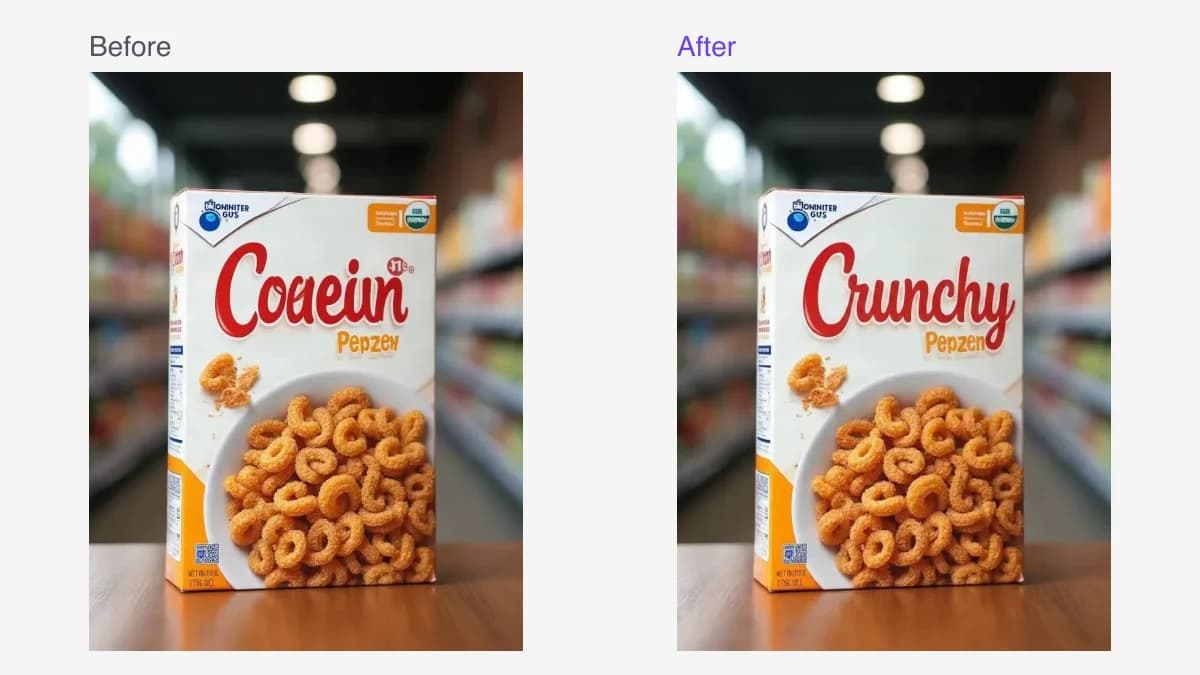
Can ChatGPT or Gemini Edit the Text in an Image?
Learn how to change image text with ChatGPT or Gemini, try a replacement prompt, and choose a dedicated text editor when you have several edits to make.

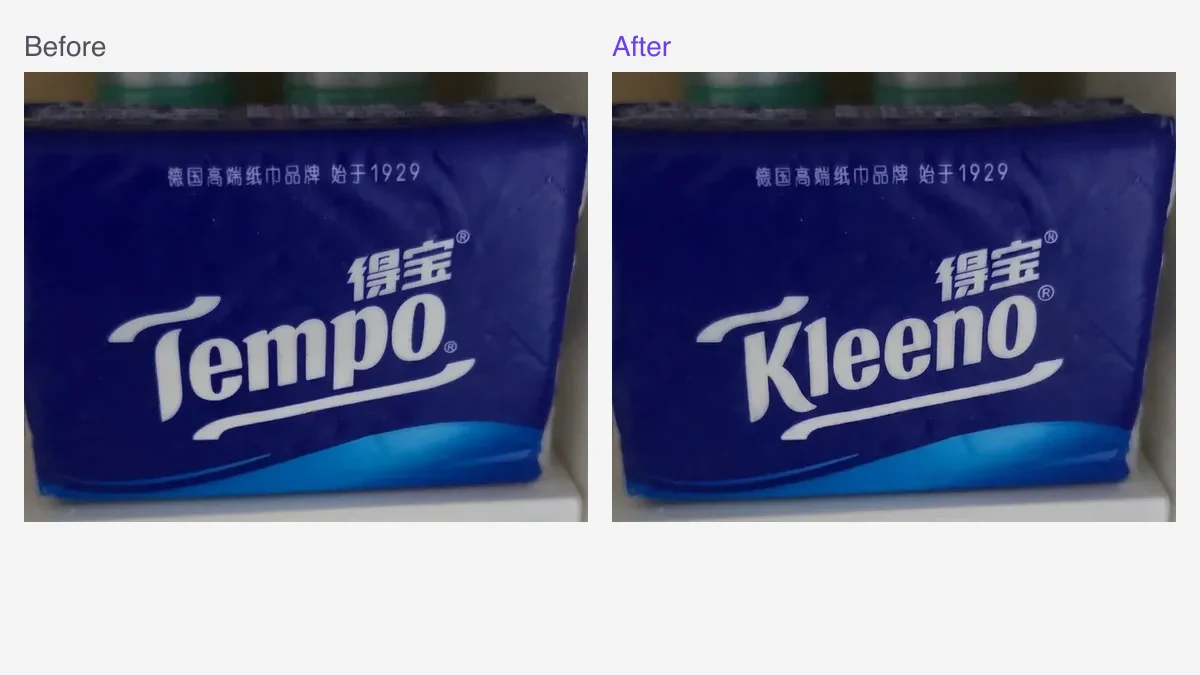
How to Change the Text on a Product Photo Without Reshooting It
Update a label, packaging mockup or promotional price using the photo you already have. Follow four steps and see real before-and-after examples.