
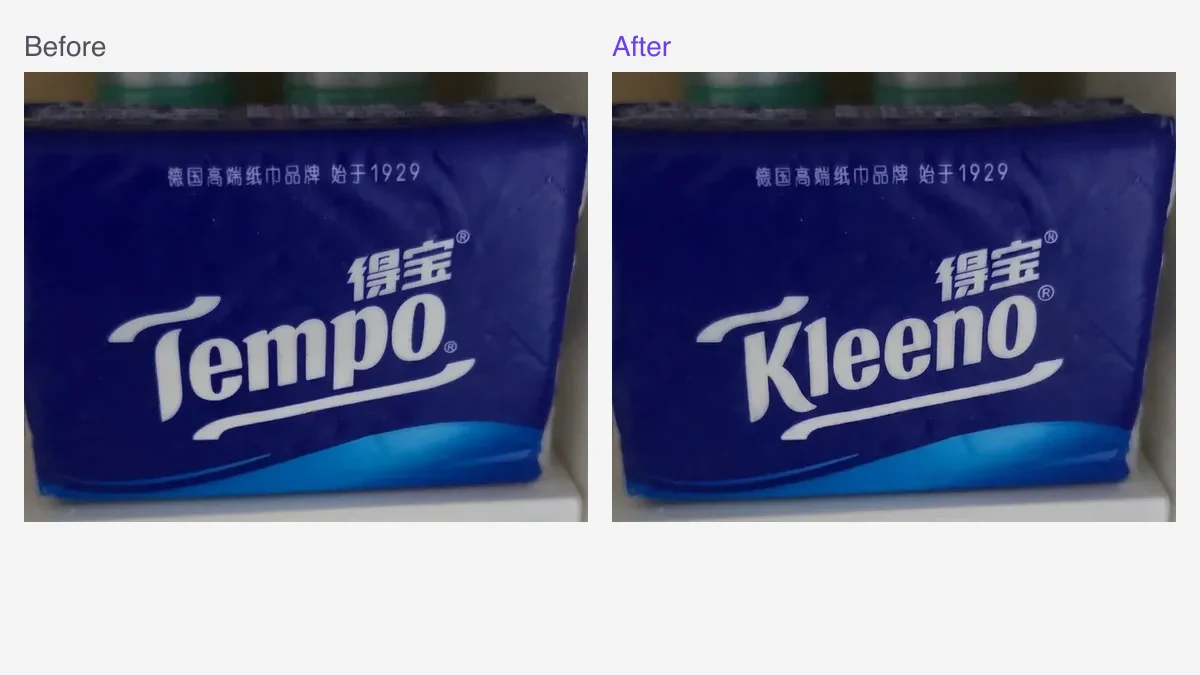
To change text on a product photo, upload the image, select the words, enter the replacement and compare the result before downloading. RetypeWords uses the lettering in your image as a style reference, so you can update a label or prepare a packaging mockup without manually matching a font.
Open the product photo text editor to try your image. PNG, JPG and WebP files up to 10MB are supported; you can generate a preview without creating an account.
Edit your product photo in four steps
- Upload the clearest copy. Use the image before it was resized or recompressed for a marketplace, when available.
- Select the words. Click a detected text region. Check Original Text (Detected) against the photograph and correct any scan errors. Enter your wording in New Text (Replacement).
- Add and run your changes. Click ADD for each text area, check the Pending List, then choose Generate · 1 credit. You can queue a price, size and promotional line on the same image.
- Review and save. Compare the full image and edited close-ups, and read any warnings. Choose the version you prefer and download it, signing in or registering when prompted.
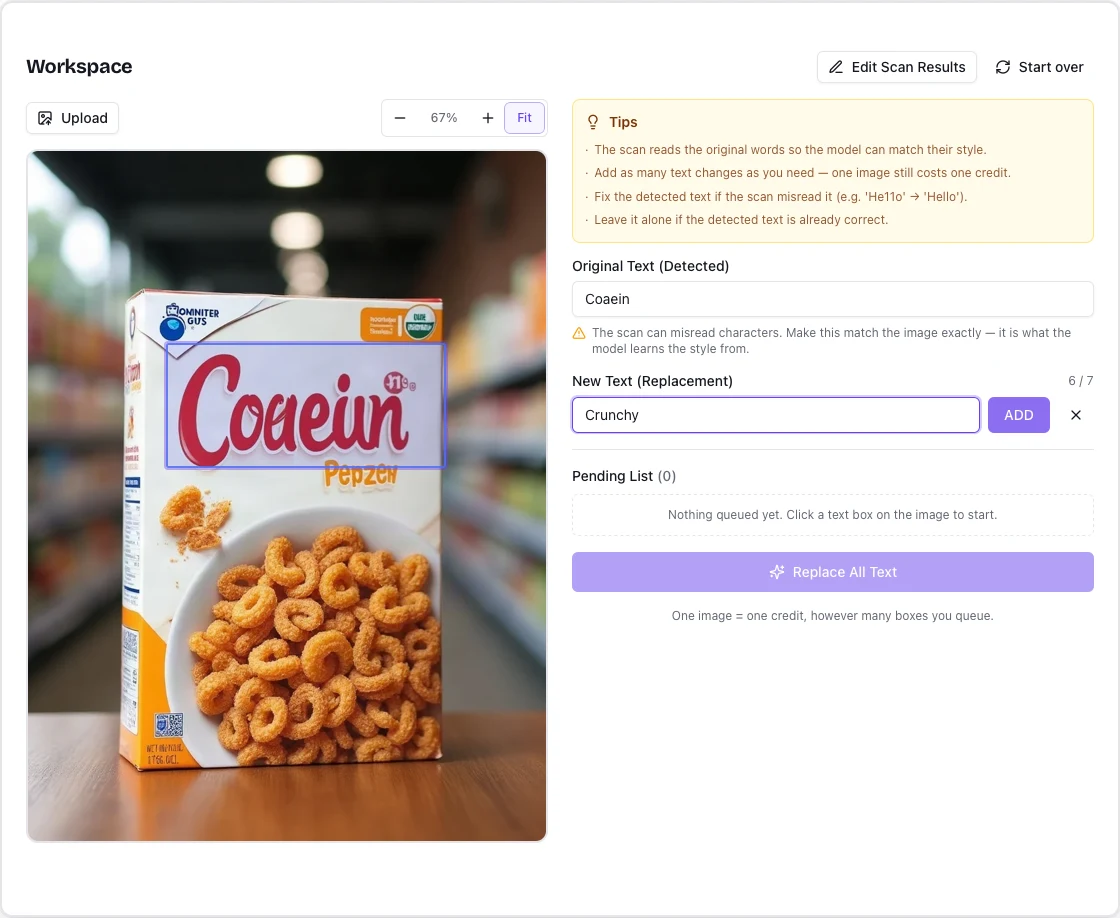
This interface example uses a cereal-box wordmark. The same selection and queue controls apply to your product photograph. The screenshot predates a button rename: the button it shows as Replace All Text is now Generate · 1 credit.
One generation task uses one credit, including multiple text areas. One credit is deducted when a new generation request is accepted. Available retries within the same task and downloads use no extra credits. If the task ends without an image, the credit is returned automatically. A generated image uses the credit even if you do not download it. Free exports include a visible product mark; paid exports do not. Download within the 30-day file retention period. See pricing for plans or the full editing walkthrough for candidate review and retries.
Example: update a capacity line on a label
This phone photograph shows a cleanser tube. The requested replacement covered the entire capacity line:
- Original:
℮125 mℓ 4.22 FL.OZ. - Replacement:
℮200 mℓ 6.76 FL.OZ.
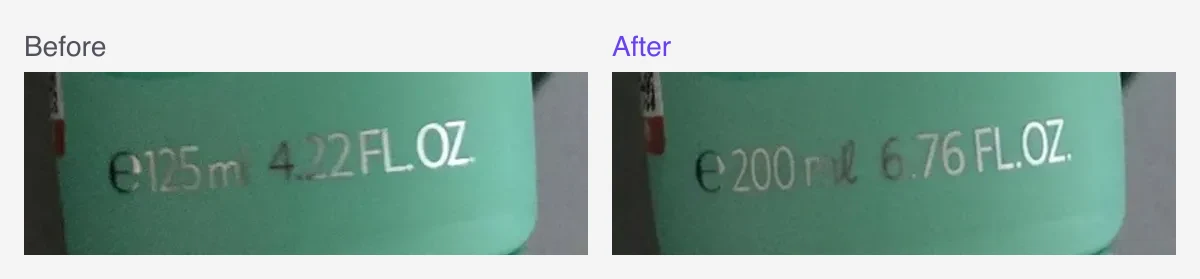
Both units were included in the requested edit. The result illustrates updating a complete label line while retaining a similar visual style.
For a label with several units, enter the complete intended wording rather than leaving the second value for the model to infer. Keep spacing and punctuation in the replacement field, then check that every character is readable at full size.
This is a packaging demonstration. For a live listing, use details that accurately describe the product being sold.
Example: preview a packaging wordmark
The tissue-pack image at the top shows Tempo changed to Kleeno on a phone photograph. This is useful as a mockup example: you can see replacement lettering on the photographed object before rebuilding a packaging design.
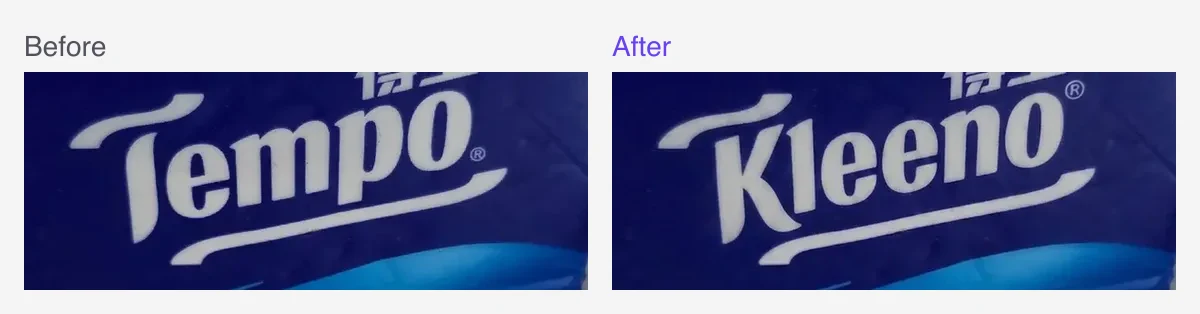
The replacement follows the heavy italic lettering. The underline's position also shifts, so include surrounding graphic elements in your review.
Short wording helps a mockup fit the original space. Replacing one brand word with a full slogan asks for a layout change as well as new lettering. If you need different line breaks, try a shorter phrase or separate text areas already present in the image.
For camera images with reflections, crinkled wrapping or angled surfaces, see editing text in a photo. For lettering choices, the same-font guide explains what a visual match means.
Example: change a promotional price
Product campaigns also use designed graphics alongside photographs. This rendered sale poster changes $19 to $12:
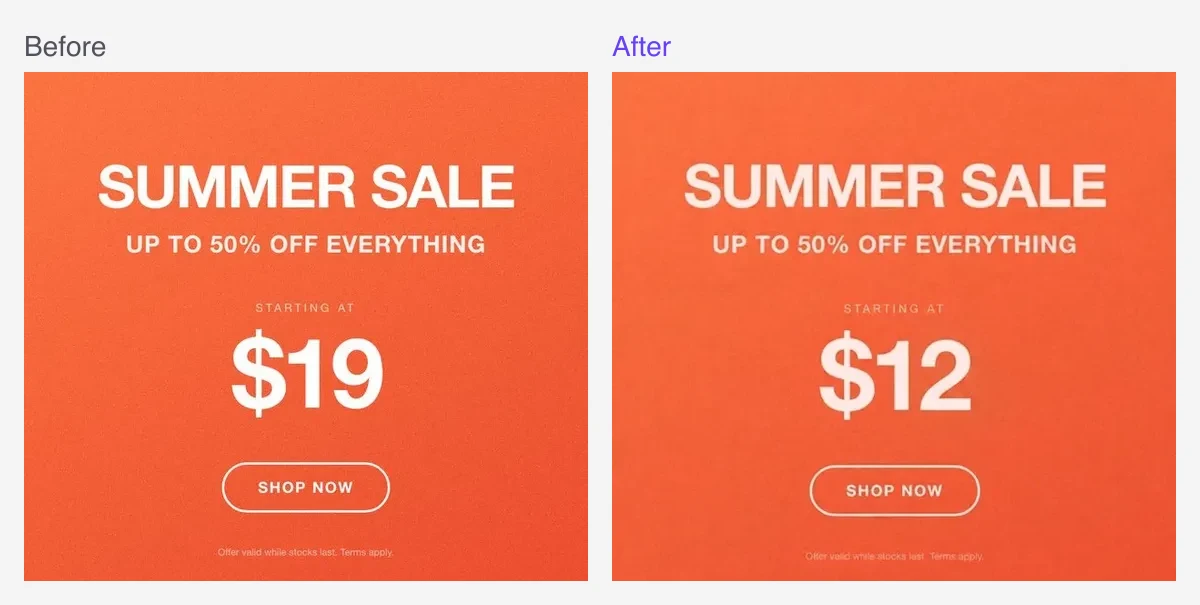
The price is replaced; the background becomes flatter and the small print softens. Inspect the result at its intended display size as well as full size.
When adapting a promotion, check the currency symbol, decimal separator, offer dates and any second price. Queue related text changes together so the full offer is consistent. Available retries on the same task do not cost an additional credit; the interface shows how many remain.
Which product-image changes fit this workflow?
RetypeWords is useful when the image layout already works and the task is to replace existing wording:
- Labels: update a capacity, size or short specification in a packaging mockup.
- Promotional graphics: change a price, date or offer line for a new campaign.
- Corrections: replace a typo or an outdated SKU shown in an image.
- Localised artwork: replace a short label with supplied wording for another market, checking the new text length and layout.
If you have an editable design file, updating its text layers is often simpler. If you want to add an entirely new caption, a text overlay tool gives you direct positioning and font controls. RetypeWords focuses on replacing words already present in the picture.
Do you need Photoshop?
You can use RetypeWords without Photoshop or manual masking. The choice is about the level of control your image needs:
| Choose | When it fits |
|---|---|
| RetypeWords | You want to select existing text, enter replacements and review generated candidates |
| A layer-based editor | You need detailed control over background reconstruction, letter spacing, perspective or surrounding pixels |
| The original design file | The text is still editable and you can re-export the artwork |
| ChatGPT or Gemini | You want to discuss text changes together with broader image revisions |
Generative tools can alter surrounding details as they edit. A manual editor gives you control over where you apply changes, with more work on your part. For conversational editing steps and a prompt template, see editing image text with ChatGPT or Gemini.
Get a clearer result
Start with readable text. A tiny label in a compressed listing thumbnail gives the editor less detail to work from. Upload the larger source when possible; the JPEG guide covers recompression and source quality.
Keep the replacement close in length. 125 ml to 200 ml fits the same space. A long promotional sentence may need new line breaks or a different layout.
Check the whole product. Compare lettering, nearby numbers, logos, edges and background texture. If a barcode or QR code is present, test that it still scans. Automatic warnings are useful prompts to inspect the result, not a substitute for this review.
Flat, clearly lit text is a useful starting point. Tight curves, metallic lettering and tiny ingredient lists can require manual retouching. Choose the result based on the image you actually need to deliver.
Frequently asked questions
How do I change text on a product photo online for free?
Open RetypeWords, upload the image, select the words, enter a replacement and click ADD, then Generate. You can try an edit without an account. Sign in to download; free exports include a visible product mark.
Can I change a price and a label on the same image?
Yes. Add each replacement to the Pending List before generating. One generation task uses one credit, including all queued text areas.
Will it keep the original font and background?
The editor uses the visible lettering as a style reference and aims for a close visual match. It does not recover a font file. Background texture and nearby details can change, so compare the full image before using it.
Can I edit a photo taken with my phone?
Yes. The tissue and cleanser examples here are phone photographs. Use a clear source with the text in focus; strong reflections and steep viewing angles can make the edit harder.
What happens if I do not like the result?
You can compare available candidates or retry while attempts remain. A generated image uses its credit even if you do not download it. Keep your original image and choose a candidate only when it suits your use.
The before/after pairs are archived evaluation examples, not outputs from the current production setup or a measured success rate. The tissue and cleanser inputs are our own photographs; the sale poster is project-rendered. The workspace screenshot illustrates the interface using an archived result.
More Posts
GPT Image 2.5 Image Editing: Text, Backgrounds & 7 Prompts
GPT Image 2.5 image editing explained with a real three-step before-and-after on one product photo, seven copyable prompts for text, backgrounds and objects, and a Sunburst vs Flare guide.

Can ChatGPT or Gemini Edit the Text in an Image?
Learn how to change image text with ChatGPT or Gemini, try a replacement prompt, and choose a dedicated text editor when you have several edits to make.