
How to change text in a poster
Short answer: if you still have the Canva, Illustrator or PSD project, update the text layer there and export again. If you only have the flattened PNG, JPG or WebP poster, upload it to the poster text editor, queue every detail that needs to change — including repeated dates or prices — and compare the layout before downloading.
Event moved to Sunday? Price dropped? Venue changed? Updating a finished poster is usually about one or two facts, but those facts often appear in more than one place, and the new wording may not be the same length. This guide walks through finding every dependent detail, deciding whether an in-place edit fits, and checking visual hierarchy.
Find every detail that needs to change
Posters repeat key information, and the same fact can appear in a headline, a details block and small print at the bottom. Go through each element before you start so no outdated line is left behind:
| Element | What to look for | Easy to miss |
|---|---|---|
| Title or headline | The main event or offer name — usually the largest lettering | Taglines or subheadings that repeat the title or edition number |
| Date and time | Day, date, start and end hours | Day-of-week labels (SAT vs SUN) that must change with the date, or a date repeated in small footer print |
| Venue or location | Venue name, hall, room, booth or street address | Map captions, door notes or parking instructions |
| Price or offer | Ticket price, discount tier or "from" amount | A "was / now" comparison line or early-bird deadline |
| Sign-up or call to action | Registration URLs, social handles or QR captions | A short URL or deadline line that depends on the event date |
| Brand marks to keep | Organizer logos, sponsor badges and illustrations | Small sponsor marks sitting right next to the edited text |
Also note the visual hierarchy: if the date is the second-most prominent element on the poster, it should stay that way after the edit.
Replace the text in place, or re-lay out the poster?
When the original design file is missing — one of the most frequent requests in communities like r/PhotoshopRequest and Graphic Design Stack Exchange — compare whether an in-place text swap or a layout rebuild fits the change:
| Change | Replace in place when… | Go back to the source layout when… |
|---|---|---|
| Same-length update (SAT MAY 4 → SUN MAY 12, $18 → $15) | The new wording is close in length and sits on a clear or gradient area | — |
| Somewhat longer text (STUDIO B → MAIN HALL) | There is breathing room around the line, or a slightly tighter fit is acceptable | The letters already sit tight against a border, photo subject or poster edge |
| Much longer text (a short venue name becomes a full street address) | Rarely — squeezing twice as many words into one line hurts readability | It needs an extra line, a new font size or a different position |
| New information that was not on the poster before | — | Adding a brand-new section is a layout change; if you only need an old line gone, use the image text remover |
| Custom hand-lettered or 3D display titles | Only for minor spelling fixes where a close visual match is enough | The lettering must keep an exact custom vector shape — edit the original artwork |
Real examples: updating an event poster and a price flyer
Example 1: changing the date and venue together on a concert poster
On an exported Risograph-style concert poster, both the date line (SAT MAY 4) and the venue line (STUDIO B) needed to move to SUN MAY 12 and HALL A. Both boxes were queued in the Pending List and generated together in a single 1-credit task.
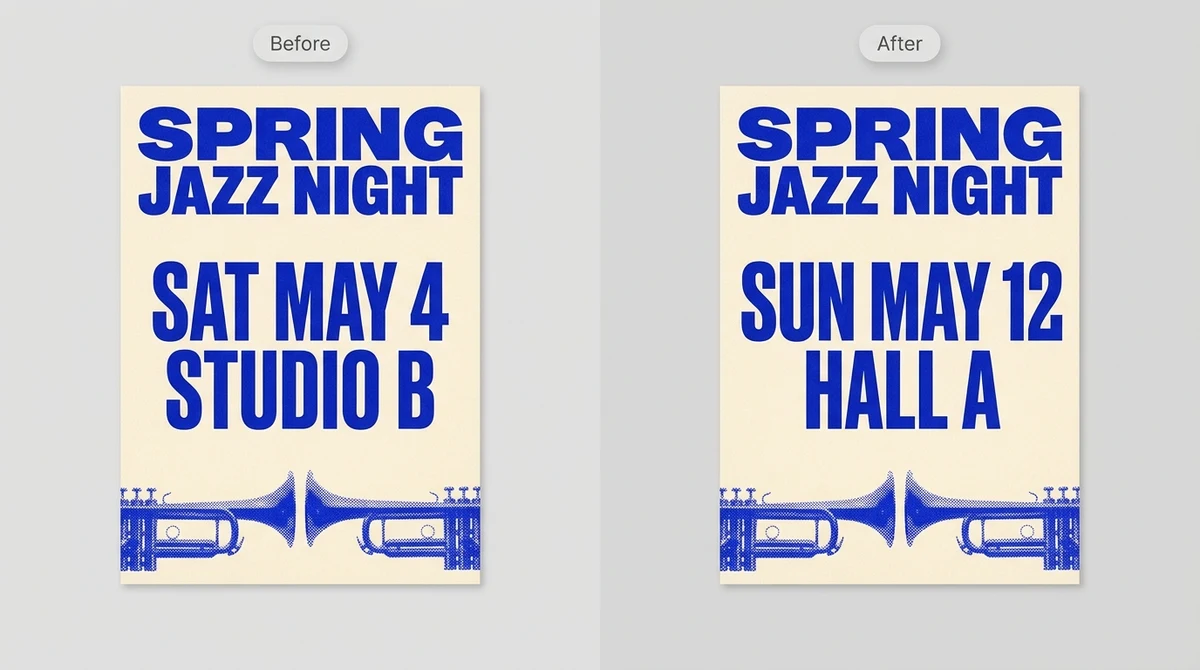
Before & After event poster update: queuing the date (SAT MAY 4 to SUN MAY 12) and venue (STUDIO B to HALL A) together while keeping the condensed display styling and background grain.
What to inspect in this result:
- Day-of-week consistency:
SATchanged toSUNalongside the date number so the poster does not contradict itself. - Condensed display style: the new letters match the tall condensed capitals, dark ink color and baseline alignment of the surrounding block.
- Unchanged headline and art: the main headline and geometric illustration above the date block remain readable.
Example 2: updating a price on a weekend brunch flyer
When only the price changes on a menu or promotional flyer, keeping the currency symbol, digit weight and spacing aligned with the surrounding typography is the main check.
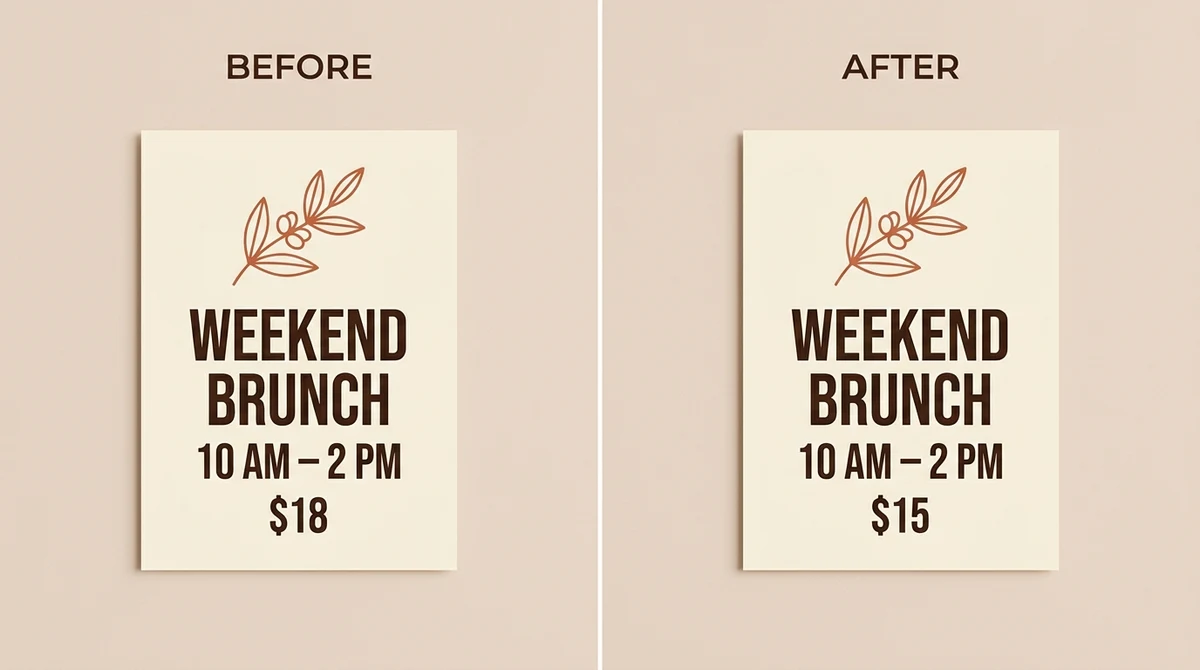
Before & After flyer price update: changing $18 to $15 in place without disturbing the botanical line illustration.
Preparing a version of a poster in another language instead? Use Replace image text with your translation when you have a reviewed translation ready.
Step-by-step: edit the poster and check the layout
- Upload the clearest poster file in the poster text editor — PNG, JPG or WebP up to 10 MB. Avoid screenshots of a poster from chat apps if you have the original export.
- Select every detail on your list — including repeated dates or prices in small print. Confirm Original Text (Detected) matches the poster character for character (fix any misread digit such as
0vsO), type the new wording in New Text (Replacement) and choose ADD. - Choose Generate. All queued replacements in the Pending List run together as one task for 1 credit.
- Inspect the result before sharing or printing:
- Hierarchy: the headline still reads first, and the date, time and price still stand out at a glance.
- Margins and spacing: the new wording does not crowd nearby illustrations, borders or the poster edge.
- Consistency: every repeated date, day of the week or price across the poster now says the same thing.
- Marks you kept: organizer logos, QR codes and sponsor marks near the edit are intact.
- The whole poster: compare the full image against the original, because generation redraws the frame.
- Download the PNG, signing in if prompted.
For scan-correction tips and general image steps, see the full image text editing walkthrough. Updating a storefront sign, screenshot or product image instead? Open the RetypeWords online image text editor.
When it is better to redesign from the source
- The poster is packed with small text. Dense speaker schedules, full restaurant menus or fine-print sponsor blocks leave little room for longer wording; updating the source file in Adobe Illustrator, Photoshop or Canva keeps small type crisp.
- The main title is custom hand lettering or a signature logo. RetypeWords aims for a close visual match rather than recovering an original font file. If a custom wordmark must keep its exact vector outline, edit the original artwork. See what font style matching covers.
- Several changes alter the layout structure. If you need to add new paragraphs, move the date to a different corner or resize the headline, work in your design tool or template.
- The poster is a heavily compressed JPG. If small text is already blocky or unreadable at 100% zoom, check our JPEG text editing guide first.
Questions about changing text in a poster
How do I change the date or time on a poster without the original design file?
Upload the exported PNG, JPG or WebP poster to the poster text editor, select the box over the date or time, confirm Original Text (Detected) matches the poster, enter the new date in New Text (Replacement), click ADD and click Generate. Check whether the day of the week or a footer date also needs updating in the same task.
Can I change the headline, date, venue and price on a poster at the same time?
Yes. Add each text box you want to update to the Pending List before clicking Generate. RetypeWords processes all queued replacements on that poster together for 1 credit.
What if the new venue name or title is longer than the old one?
Wording that is much longer than the original line has to fit into roughly the same space, so it may shrink, tighten spacing or wrap. Shorten the wording to a similar character count when possible, or edit the layered source file if the poster needs a new layout.
Will the new poster text match the original font?
RetypeWords visually matches letter weight, color, size and spacing from the poster pixels rather than installing the original font file. If the lettering style drifts, use an available same-task retry at no extra credit, or see how font style matching works.
Can I remove an old sponsor line, badge or date instead of replacing it?
Yes. Switch to the image text remover, select the line or badge you want gone, add it to the removal list and generate a version with the background rebuilt.
Is it free to try on a poster?
You can try 1 image free on this device without creating an account. Signing in unlocks the free download, which includes a RetypeWords mark; paid plans remove the mark at 1 credit per generated image task. Same-task retries and downloads use 0 extra credits. See Pricing.
Ready to update your poster?
Have your clearest poster export and the full list of date, venue or price updates ready, then open the poster text editor.