
Replace Image Text With Your Translation
Make another language version of a poster, banner or promo graphic using a translation you have already prepared. Upload the image, select each line of the original text, and paste in its translated version.
RetypeWords places the wording you provide — it does not translate the image for you, so have your translation written and reviewed before you start. Try one image on this device without an account.
Your workspace
PNG · JPG · WebPFree to try · No account to start
Sign up to download. Free exports include a mark.
Before You Start Localizing an Image
- Match each line to its translation. Write down every piece of text you will change next to its translated version so nothing is missed or swapped.
- Decide what stays. Brand names, logos, product names and social handles often remain in the original language — note which ones to leave untouched.
- Check dates, times and numbers. Formats change across languages (for example, 2:45 PM may become 14:45); confirm the translation uses the local format you want.
- Use a clear, flat image. Posters, banners and promo graphics with crisp printed lettering are the strongest starting point. Dense small print and curved surfaces need closer review.
- Have the translation proofread. RetypeWords does not check whether a translation is accurate, so have a fluent reader verify your copy beforehand.
How to Replace Image Text With Your Translation
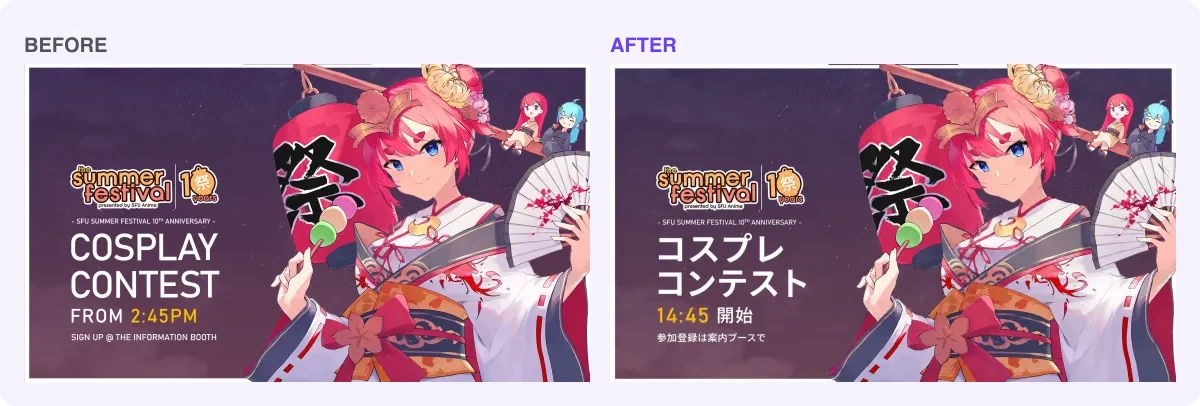
Before & After example: replacing poster lettering with a checked Japanese translation while keeping the artwork intact.
- Upload the image and check that each line you want to localize has a box. If words in another script are missed, choose the image's language and rescan, or open Edit Scan Results to use Draw Missing Box.
- Verify the detected original text. Select each region and make sure Original Text (Detected) matches the image for every line you plan to change.
- Paste the translation for each line into New Text (Replacement) and choose ADD. Repeat until every line is in the Pending List.
- Generate. All lines in the Pending List are processed together for 1 credit.
- Check and save. Review both the translated wording and the layout with the checklist below, choose your preferred version, and Download, signing in if prompted.
Need general single-language edits instead? Use the RetypeWords image text editor.
Check Both the Language and the Image
Check the wording
- Every character is present, including accents, diacritics and punctuation.
- Numbers, dates, currencies and times match your prepared translation.
- Each line landed in the right position, with nothing swapped or omitted.
Check the image
- Line breaks and line count fit the available space without crowding borders.
- Visual hierarchy still reads clearly — headings still look like headings.
- Logos, brand marks and other unselected elements remain intact.
These checks are yours to complete; RetypeWords does not proofread target languages.
Frequently Asked Questions About Localizing Image Text
Does RetypeWords translate the text in my image automatically?
No. You write or obtain the translation first, then paste it in as the replacement for each line. That keeps the wording under your control and ensures brand terms are handled the way you intend.
Which languages can I use?
The image-language selector controls text scanning, not a fixed guarantee of edited languages. Always inspect character shapes, accents, writing direction and spacing in the generated comparison before downloading.
What if my translation is much longer than the original?
Longer text has to fit into roughly the same area, so it may be resized, re-spaced or wrapped onto extra lines. Consider a slightly shorter phrasing if space is tight, or adjust the layout in the source design file.
Can I localize right-to-left or vertical text?
Complex writing directions, vertical layouts and dense multi-column graphics are harder to preserve reliably and have not been broadly validated. Inspect every character and line order closely, or edit those layouts in the source file.
How much does one localized image cost?
You can try one image on this device without an account. Sign in to download; free exports include a RetypeWords mark, while paid exports do not. One image task uses 1 credit even when you replace multiple lines at once.
Localize Your Image with RetypeWords
Upload your image, paste your reviewed translation line by line and compare the output before downloading. See Pricing for plans and credits.