
Remove Text from Image Online Free
Erase unwanted words, captions, stickers, and watermarks from any picture in seconds. RetypeWords reconstructs the original background seamlessly without leaving blurry patches.
Upload a PNG, JPG or WebP up to 10 MB, or paste it from your clipboard (Ctrl+V / Cmd+V). The RetypeWords workspace opens in removal mode, so there is no replacement text to enter.
Remove text workspace
PNG · JPG · WebPFree to try · No account to start
Sign up to download. Free exports include a mark.
How to Remove Text from an Image in 3 Simple Steps
1. Upload Your JPG, PNG or WebP Picture
Drop, browse or paste the clearest photo, graphic or screenshot you have. RetypeWords scans it and outlines the text it finds.
2. Brush or Box-Select the Text Area
Select the box around the words you want gone and check that Original Text (Detected) matches the image; use Edit Scan Results if a region needs correcting. With Text action set to Remove text, choose Add removal. Repeat for every other area — each one joins the Pending List.

Example removal workflow: select the unwanted promotional line, confirm removal, and inspect the rebuilt wall shadows.
3. Instant AI Background Reconstruction & Download
Choose Generate · 1 credit. RetypeWords erases the selected words and rebuilds the background behind them. Compare the repaired areas and the whole image with the original, choose the version you want, then sign in to download the PNG.
Erase Words Without Ruining the Background
Seamless Inpainting for Gradients and Complex Textures
The RetypeWords text remover reads the color, lighting and pattern around the selected words and continues them across the space the letters occupied. Flat colors are filled edge to edge, gradients keep their transition, and photos or textured surfaces have their lines and grain carried through the repaired area.
Say Goodbye to Blurry Patches and Clone Stamp Marks
Manual retouching often leaves a soft smudge or a repeated stamp pattern where the words used to be. RetypeWords generates the missing background as part of the whole picture instead. The fill is an AI reconstruction based on the surrounding image, so zoom in on the repaired area and compare the full image before you use it.
Popular Image Text Removal Use Cases
Remove Watermarks & Supplier Stamps from Product Photos
Clear supplier stamps, old sale stickers, date marks and leftover labels from product photos you own or are licensed to use, so the same shot can go into a new listing or catalog.
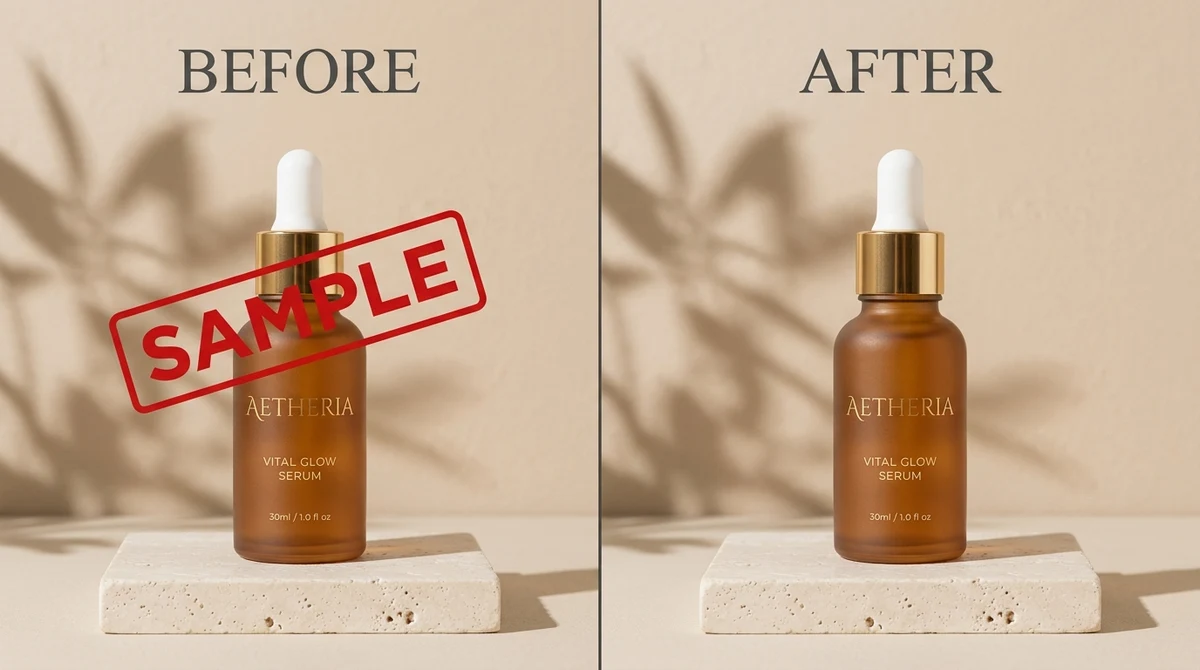
Before & After stamp removal: erasing an angled SAMPLE mark from a product bottle and travertine backdrop.
Erase Unwanted Captions & Subtitles from Photos
Delete a caption, subtitle line, timestamp or short slogan from a picture. Choose a clear source so the nearby color and texture give RetypeWords useful background detail.
Clean Sensitive Data & Popups from Screenshots
Remove sensitive data from screenshots: erase names, email addresses, IDs, notification popups and outdated annotations from tutorial images and mockups. Check the small text, dividers and icons around the edit.
AI-generated pictures: remove stray lettering when the image works better without words. If you want to correct the spelling instead, fix text in an AI-generated image.
Remove text from PNG and JPG images
Upload PNG, JPG/JPEG or WebP files up to 10 MB. The words can be embedded in the image; you do not need a layered design file or Photoshop. The download is a PNG.
Start with the original export or photograph where possible. Compression can leave halos around letters and soften the texture RetypeWords needs to rebuild. The JPEG image-quality guide explains how to choose a clearer source.
Frequently Asked Questions About Image Text Removal
Can I remove text from an image for free?
You can try one image on this device before creating an account, with no credit card needed. Sign in to download. Free exports include a RetypeWords mark; paid exports do not. View plans and credits.
Can I delete several text areas at once?
Yes. Select each region and choose Add removal before generating. The queued changes are processed as one image task for 1 credit, including any replacements in the same task.
Can I remove words from a picture without changing its background?
RetypeWords reconstructs the area behind the lettering using surrounding visual detail. Flat backgrounds are a useful starting point. For patterns, gradients and photographs, compare the repaired area and the whole image; background reconstruction is not a guarantee of unchanged pixels.
Can I remove text from a screenshot?
Yes. Upload the screenshot and select the unwanted words. Check nearby buttons, icons and small text after generation. For new wording rather than deletion, use the screenshot text editor.
Does it extract text into a document?
The RetypeWords text remover removes lettering from the picture. It does not turn the image into an editable document or return the words as a text file.
What if text is still visible?
Compare the result at full size. If the selected words or their shadows remain, use an available retry in the same task at no extra credit cost. Attempts are limited. Changing the selected regions starts a new task. A task that ends without producing an image returns its credit; a generated image uses its credit even if you do not download it.
Remove unwanted text from your picture
Have your image ready and select the words you want to erase.